
Operating System
Cyber threats evolve daily, but protecting your operating system doesn’t have to be complicated. These 10 proven tactics focus on OS-level defenses—from Windows to Linux—that block attacks before they start, without requiring advanced technical skills.
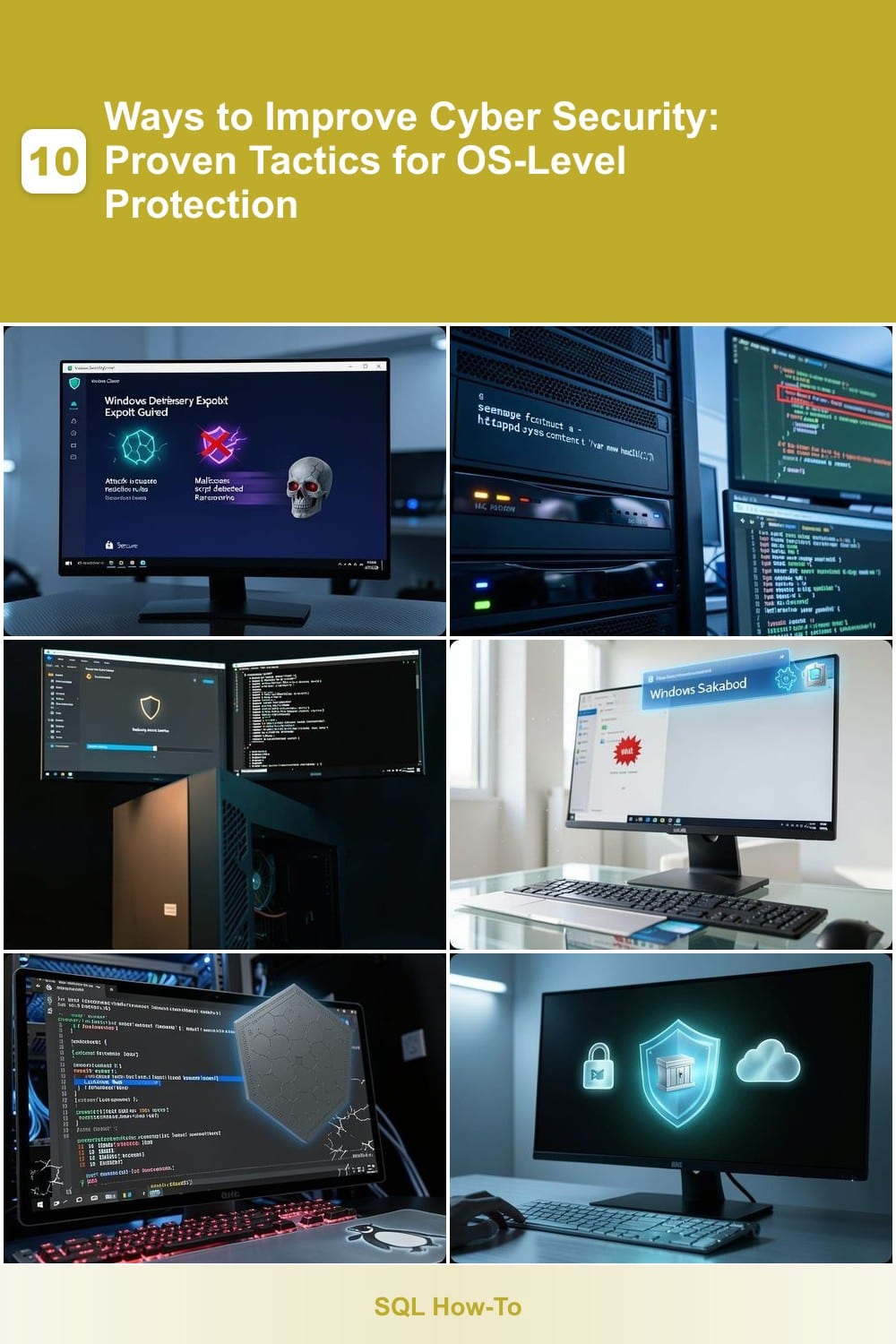
Enable Windows Defender Exploit Guard
If you’re tired of waiting for patches to fix the latest zero-day exploit, Windows Defender Exploit Guard is your first line of defense—built right into Windows 10/11. This suite of attack-surface reduction rules blocks malicious behaviors like code injection, script-based attacks, and ransomware encryption before they even execute, without relying on signatures or updates.
Enable Attack Surface Reduction (ASR) rules in Windows Security to block exploits targeting Office apps, web browsers, and Windows components. The Control Flow Guard (CFG) feature hardens apps against memory corruption attacks, while Exploit Protection lets you fine-tune protections for specific processes. Best of all, it runs silently in the background, adding layers of security without slowing you down.
This is a must-have for businesses, remote workers, or anyone handling sensitive data—think financials, healthcare, or intellectual property. It’s like having a cybersecurity bouncer at your system’s front door. ✨
Linux SELinux or AppArmor configuration
Linux servers and workstations face unique threats where traditional firewalls leave gaps—enter SELinux and AppArmor, two mandatory access control (MAC) systems that enforce fine-grained permissions at the kernel level. Unlike discretionary controls, these frameworks block unauthorized process interactions by default, stopping privilege escalation before it starts.
SELinux (Security-Enhanced Linux) uses policy modules to label processes and files, while AppArmor relies on predefined profiles for applications like Apache or Docker. Both integrate seamlessly with systemd: run sestatus or aa-status to verify enforcement mode, and use setenforce 1 (SELinux) or systemctl restart apparmor to activate policies. For developers, tools like audit2allow (SELinux) or aa-genprof (AppArmor) help generate custom rules without manual policy writing.
Sysadmins managing public-facing servers or developers testing untrusted code will find these systems indispensable. Start with AppArmor for simplicity (Ubuntu/Debian default) or SELinux (RHEL/CentOS) for stricter enforcement—both reduce attack surfaces without sacrificing functionality. ✨
Disable unused OS services permanently
Every running service is a potential entry point for attackers—whether it’s Remote Registry on Windows or Bluetooth on Linux. By disabling unused services permanently, you shrink your system’s attack surface to only what you actively need, making exploits far harder to execute.
On Windows, use Task Manager (Services tab) or sc config in Command Prompt to disable services like Superfetch or Print Spooler if unused. For Linux, systemctl disable removes services from startup entirely—think cups (if no printer) or avahi-daemon (unless you need local network discovery). Both methods require admin rights but take just minutes to implement.
This tactic is ideal for home users who want basic hardening, developers testing security configurations, or sysadmins managing multiple machines. Fewer services mean fewer vulnerabilities to patch—and fewer exploits to worry about. ✨
Implement Windows sandbox for testing
Curious about that sketchy download you just grabbed? Windows Sandbox turns your PC into a zero-risk playground—a lightweight virtual machine that resets itself after every use. No malware survives its reboot, and it’s built into Windows 10 Pro and 11 for free.
With hypervisor-based isolation, it runs apps in complete separation from your host system, using Intel VT-x or AMD-V for hardware-level security. Copy-paste works between host and sandbox, but malware stays trapped inside. Perfect for testing shady installers, analyzing suspicious files, or even running untrusted software from dubious sources.
Security researchers love it for malware analysis, but even casual users benefit—no need to wipe your main OS after testing risky software. Just close the sandbox, and it’s gone. ⚡
Enable Linux kernel lockdown mode
If your Linux system handles sensitive data—like financial records, healthcare info, or government secrets—kernel exploits are the silent nightmare you can’t ignore. Kernel Lockdown Mode flips the script by locking down the kernel itself, making it nearly impossible for attackers to modify critical system components, even with root access.
Introduced in Linux kernel 5.4, Lockdown Mode offers three levels: integrity (blocks kernel module loading), confidentiality (prevents kernel memory dumping), and integrity + confidentiality (combined protection). You enable it via kernel boot parameters (lockdown=integrity or lockdown=confidential) or runtime configuration (/sys/kernel/security/lockdown). For servers, this means rootkits like DirtyCow or Meltdown exploits become useless—no matter how clever the attacker.
This isn’t just for paranoid sysadmins—anyone running Linux in high-security environments (think: cloud providers, medical devices, or government workstations) should enable it. The trade-off? Minimal performance impact, but unbreakable kernel integrity. 💻
Use Windows Credential Guard
If you juggle multiple accounts—work emails, banking apps, or cloud services—Windows Credential Guard acts like a digital vault for your passwords, shielding them from memory-scraping malware. Unlike basic password managers, it isolates credentials in a virtualized, kernel-protected environment, making it far harder for attackers to extract them even if they compromise your system.
Enabled via Windows Security > Account Protection, Credential Guard uses Virtualization-Based Security (VBS) to store credentials in an Isolated User Mode (IUM) session. This means even if malware infects your main OS session, it can’t access the LSASS (Local Security Authority Subsystem Service) process where passwords are stored. It works seamlessly with Windows Hello for Business and Azure AD, making it a must-have for enterprises or power users managing sensitive data.
Ideal for IT admins, remote workers, or anyone handling corporate logins, Credential Guard requires Windows 10 Enterprise/Education or Windows 11 Pro/Enterprise with TPM 2.0 and Secure Boot. For most users, it’s a zero-configuration upgrade that runs silently in the background. ✨
Linux immutable filesystem with OverlayFS
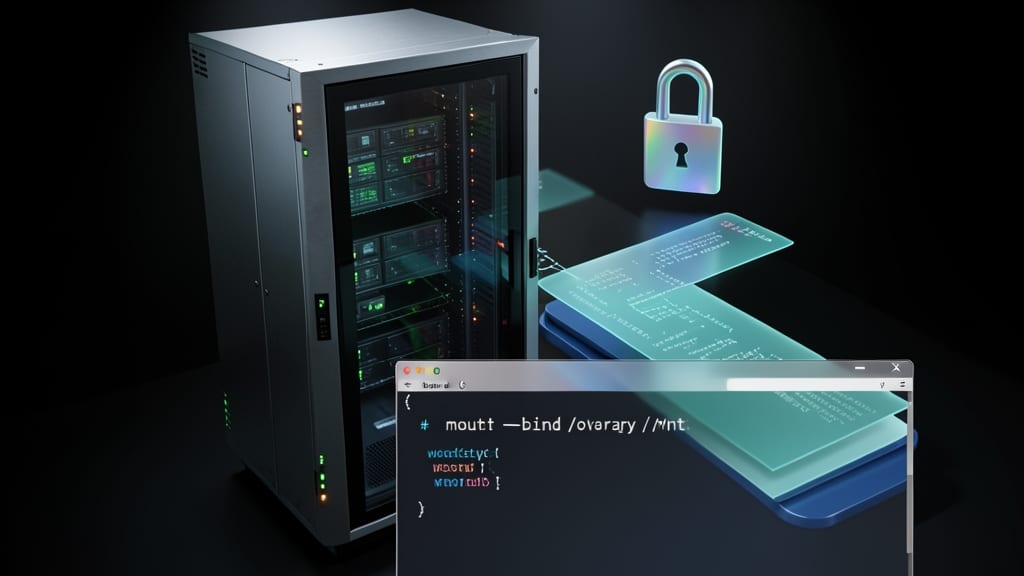
If you’re running Linux in containerized environments or CI/CD pipelines, immutable filesystems with OverlayFS could be your best defense against unauthorized modifications. This approach locks down your root filesystem while allowing writable layers on top—perfect for enforcing strict security policies without sacrificing flexibility.
With OverlayFS, you mount a read-only base layer (like /usr or /etc) and overlay a writable layer for changes. Tools like systemd’s systemd-readonly or Debian’s debian-readonly-rootfs automate this process, while commands like mount --make-immutable enforce the restriction permanently. This ensures even root users can’t modify critical system files, stopping malware or misconfigurations in their tracks.
Developers and DevOps teams managing Kubernetes clusters or Docker hosts will benefit most, as this method guarantees consistency across builds and prevents container escape exploits. ⚡
Enable Windows core isolation (memory integrity)
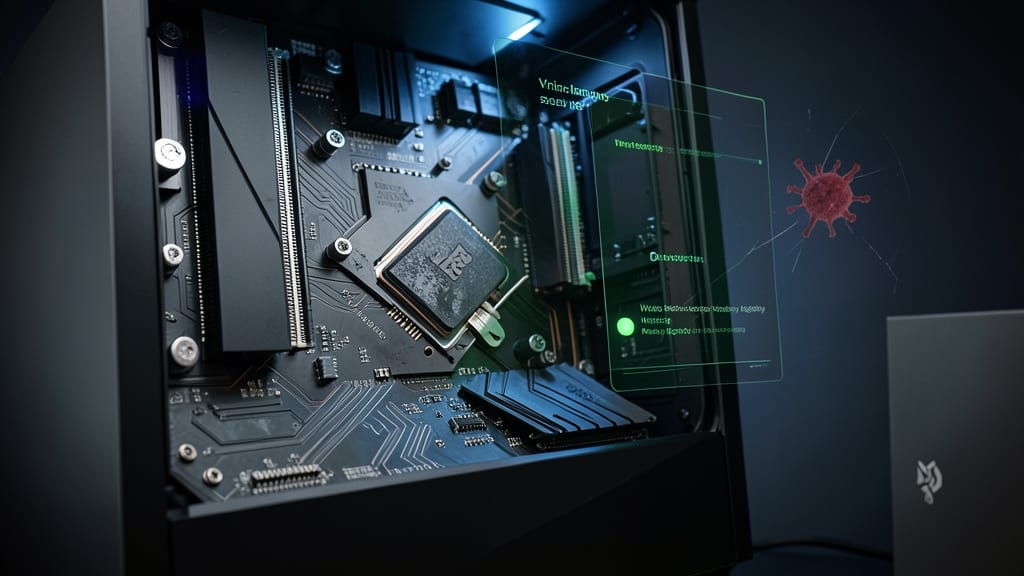
If you’ve ever worried about malware slipping past your antivirus to tamper with your system’s core functions, Windows Core Isolation (Memory Integrity) is your hardware-backed shield. Unlike traditional software-based defenses, this feature leverages your CPU’s virtualization-based security (VBS) to create a locked-down memory space that even rootkits can’t breach.
Enabled via Windows Security > Device Security > Core Isolation, it requires a 64-bit Windows 10/11 system with virtualization support (Intel VT-x or AMD-V) and a compatible CPU. Once active, it prevents unauthorized kernel-level modifications, protecting critical processes like your OS bootloader or drivers. Gamers benefit from blocking cheat injections, while developers can safely test untrusted code without fear of memory corruption.
This is the ultimate safeguard for power users who need hardware-enforced security without sacrificing performance. ⚡
Linux user namespaces restrictions
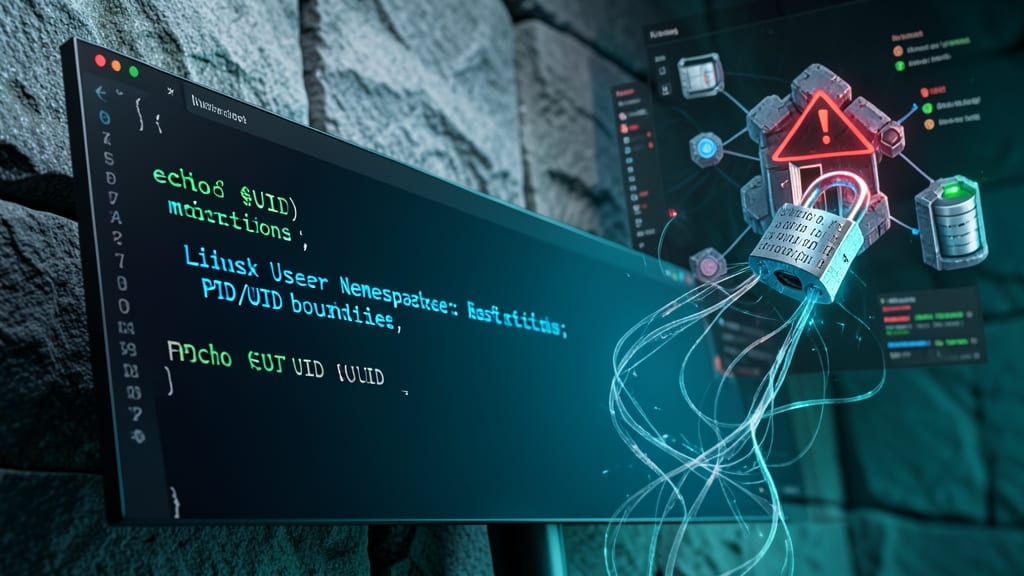
If your Docker or Kubernetes clusters have ever felt like a fortress with a single unlocked door, Linux User Namespaces Restrictions might be your answer. By default, containers can manipulate process IDs (PIDs) and user IDs (UIDs) to escape their boundaries—this setting slams that door shut by enforcing strict namespace isolation.
The key is setting kernel.unprivilegedusernsclone=0 in /etc/sysctl.conf, which prevents non-root users from creating new user namespace mappings. Combined with Docker’s --userns-remap flag, this ensures containers can’t escalate privileges or break out of their assigned UID ranges. It’s a lightweight but powerful defense against container escape exploits like CVE-2019-5736, which targeted runc before fixes were deployed.
This is non-negotiable for cloud-native security teams managing multi-tenant Kubernetes clusters or CI/CD pipelines where container isolation is critical. The performance impact is minimal, and the protection is battle-tested in production environments. ✨
Windows BitLocker with TPM 2.0
If your laptop contains sensitive work files, financial data, or personal documents, BitLocker with TPM 2.0 is your first line of defense against physical theft. Unlike password-only encryption, this feature binds your drive’s encryption key to your device’s hardware security chip, making unauthorized decryption nearly impossible—even if someone steals your machine.
Modern Windows systems (Pro/Enterprise editions) include TPM 2.0 by default on most newer hardware. When enabled, BitLocker automatically encrypts your entire drive, with recovery keys stored securely in Microsoft’s cloud or a USB drive. The AES-256 encryption ensures military-grade protection, while the TPM’s hardware root of trust prevents tampering—no admin rights required to set up.
This is the gold standard for laptop security, especially for remote workers or anyone carrying confidential data. Just ensure your TPM is enabled in BIOS first—it’s a one-time setup that delivers peace of mind for years. 💻