
Tip & Trick
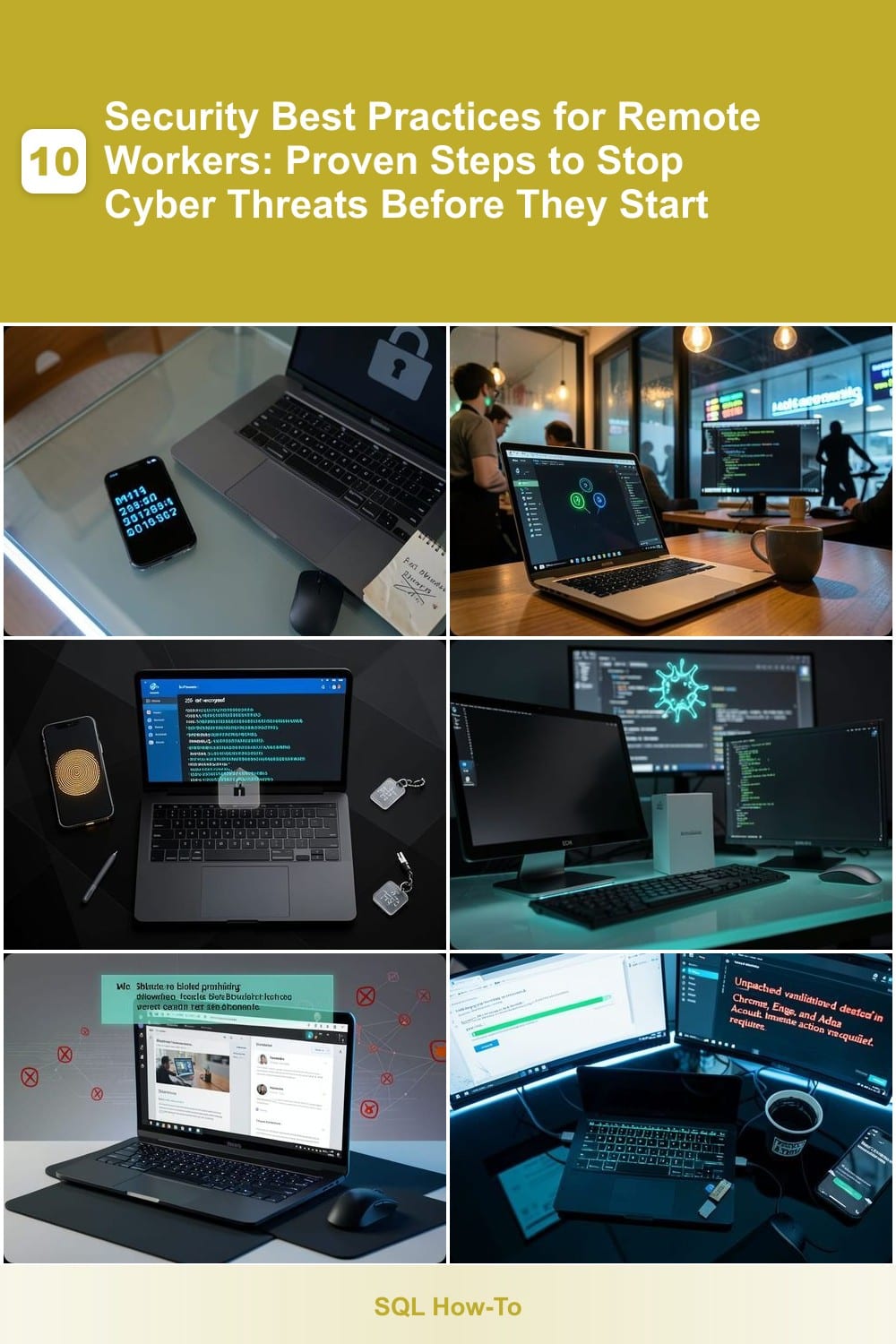
Remote work offers flexibility but exposes employees to cyber threats like phishing, malware, and data breaches. These 10 security best practices—backed by IT experts—help remote workers create an impenetrable digital fortress without sacrificing productivity.
Multi-Factor Authentication for Every Account
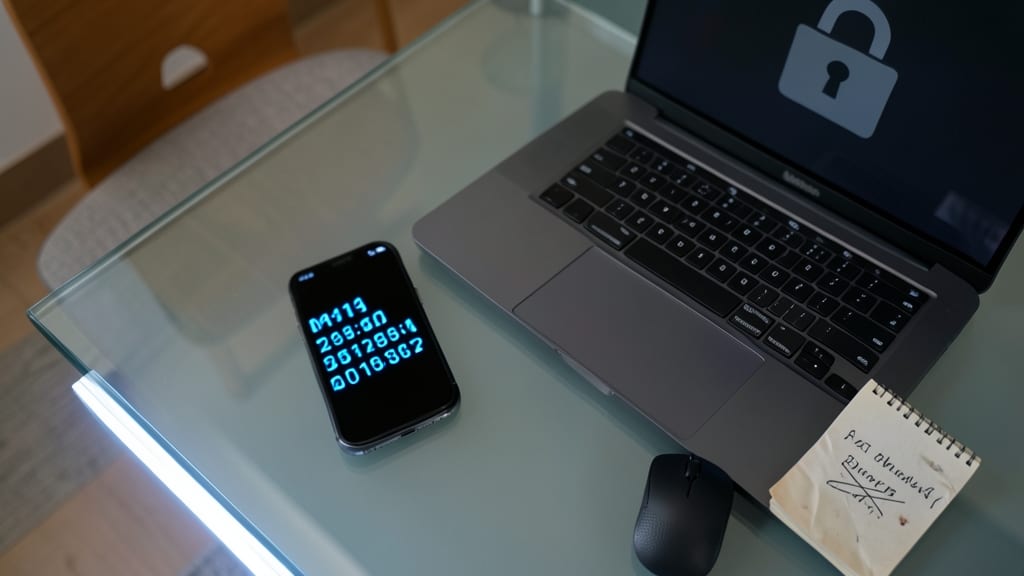
Hackers love stolen passwords—because they’re the easiest target. Multi-Factor Authentication (MFA) shuts that door by adding a second verification step, blocking 99.9% of automated attacks before they even reach your account.
Most services now support MFA via authenticator apps (Google Authenticator, Authy), SMS codes, or hardware keys. For cloud services like Microsoft 365 or financial accounts, enabling MFA is a zero-configuration upgrade that takes minutes. Even free options like Duo Mobile or Windows Hello deliver enterprise-grade protection.
This isn’t just for IT admins—every remote worker should enable MFA on email, banking, and work accounts. It’s the single most effective way to stop credential stuffing attacks. 💪
Virtual Private Network for All Connections
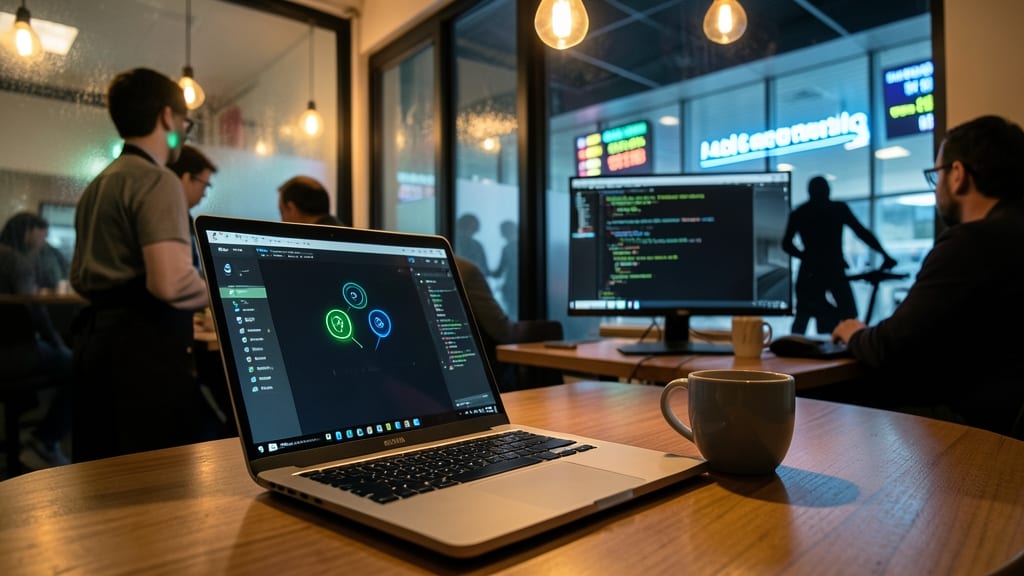
Public Wi-Fi at coffee shops or airports might seem harmless, but it’s a playground for hackers. A VPN (Virtual Private Network) encrypts all your internet traffic, making it impossible for snoopers to intercept sensitive data—whether you’re checking emails or accessing company files.
Top-tier VPNs like NordVPN or ProtonVPN offer military-grade encryption (AES-256), automatic Wi-Fi protection, and server locations worldwide to mask your IP. They also block ads and trackers by default, reducing exposure to malicious sites. For remote workers, the kill switch feature ensures your data stays protected even if the VPN drops unexpectedly.
This is non-negotiable for anyone handling sensitive work outside the office—especially if you frequently use shared networks. 💻
Password Manager with Biometric Access
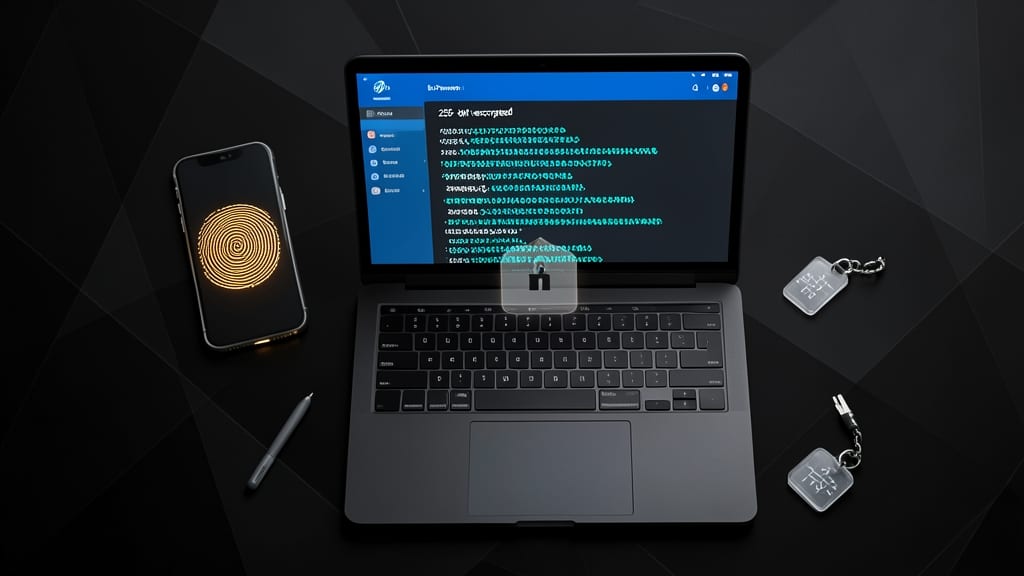
Tired of weak passwords and the endless cycle of "password123"? A password manager with biometric access like Bitwarden or 1Password eliminates password reuse risks by auto-generating and storing 256-bit encrypted credentials—so you never type the same password twice.
These tools go beyond storage by offering fingerprint or Face ID unlocks on mobile devices, ensuring only you can access your vault. They also sync across all your devices, auto-fill logins securely, and even monitor the dark web for exposed credentials. The best part? Many offer zero-configuration setups, so you’re protected in minutes—not hours.
Perfect for remote workers juggling multiple accounts, this is the one tool that pays for itself by preventing breaches. 💻
Endpoint Detection and Response Software
Advanced malware doesn’t always announce itself—it lurks silently, waiting for the perfect moment to strike. That’s where Endpoint Detection and Response (EDR) software steps in, acting as a silent sentinel for your Windows or Linux devices.
Tools like CrowdStrike Falcon or SentinelOne monitor every file, process, and network connection in real time, using AI-driven threat detection to flag and block zero-day exploits before they cause damage. They go beyond traditional antivirus by analyzing behavioral patterns—so even fileless malware gets caught. Plus, features like automated containment and forensic reporting help IT teams investigate breaches without delay.
This is a must-have for anyone handling sensitive corporate data, especially in hybrid or fully remote roles. It’s the difference between a minor scare and a full-blown security disaster. 💻
Secure Browser with Built-In Phishing Protection
Tired of falling for phishing scams that slip past Chrome or Firefox? Brave Browser and Firefox Focus replace standard browsers with real-time threat detection—blocking malicious sites and trackers before you click anything suspicious.
These browsers use built-in phishing filters (like Google Safe Browsing) and ad/tracker blockers to shrink your attack surface by 70%+. Brave even includes a built-in VPN for encrypted connections, while Firefox Focus starts with a blank slate—no history, no cookies, just pure security. Both sync seamlessly across devices.
Perfect for remote workers handling sensitive data, freelancers managing multiple logins, or anyone who wants zero-config security without sacrificing speed. 💻
Regular Software Updates and Patch Management
Ransomware attacks often exploit unpatched software vulnerabilities—yet many remote workers delay updates until it’s too late. The solution? Automating patch management so your OS, browsers, and apps receive critical security fixes within 24 hours of release, not weeks.
Most operating systems (Windows, macOS, Linux) now offer automatic update settings with optional priority scheduling for security patches. Tools like Windows Update for Business or Patch Management solutions (e.g., SolarWinds, ManageEngine) let IT admins enforce updates across fleets. Even free tools like Windows Update or Apple’s Software Update can be configured to install patches without user intervention, closing doors cybercriminals rely on.
This practice is non-negotiable for remote workers handling sensitive data—financial records, healthcare info, or corporate secrets. Set updates to auto-install during off-hours to avoid disruptions, and verify patch status monthly. ⚡
Secure File Sharing with Encryption
Tired of trusting cloud storage providers to keep your sensitive documents safe? End-to-end encrypted file sharing ensures only you and your intended recipient can access files—no backdoor access, no third-party snooping. This replaces Dropbox or Google Drive with tools like Cryptomator or Proton Drive, which encrypt files on your device before they ever leave your control.
These solutions use AES-256 encryption (the same standard used by banks) and require recipient keys to decrypt files. Features like password-protected shares and self-destructing links add extra layers for temporary or highly confidential documents. No IT degree needed—just drag, drop, and share with confidence.
Perfect for legal teams, healthcare professionals, or freelancers handling client contracts. Your data stays yours—no matter where it travels. ✨
Physical Device Security Protocols
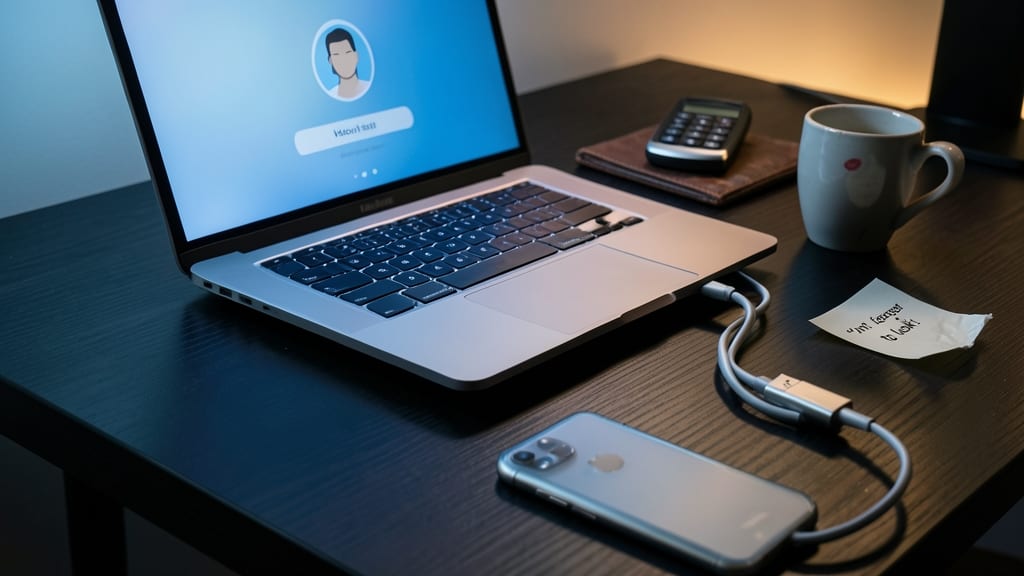
Even the strongest digital defenses fail if someone walks off with your unlocked laptop. Physical Device Security Protocols bridge that gap by combining hardware and behavioral safeguards to protect your gear when you're not looking.
Start with screen locks (Windows Hello, Touch ID, or PINs) that activate instantly when you step away—no more "I'll lock it later" excuses. Add a cable lock (like Kryptonite's KryptoFlex) to anchor laptops to desks, while clean desk policies ensure no sensitive docs or devices linger overnight. For extra vigilance, use USB port blockers to prevent unauthorized device connections.
This approach is ideal for freelancers, contractors, or anyone working in shared spaces where devices might be left unattended. Even a 5-minute setup can stop opportunistic theft or shoulder-surfing attacks. 💪
Security Awareness Training Simulations
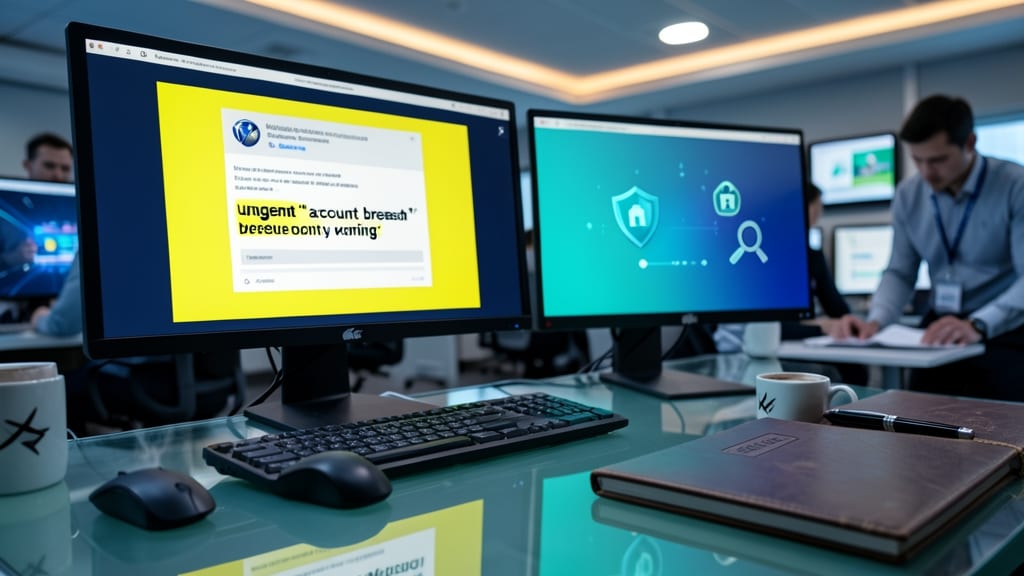
Even the strongest technical defenses fail when employees fall for phishing scams—yet simulated training programs can slash human error risks by 60%. Unlike static manuals, these interactive modules deliver real-world tests that evolve with new attack tactics, turning your team into proactive security allies.
Platforms like KnowBe4 or PhishMe send customized phishing simulations (e.g., fake invoice scams or urgent password prompts) and track engagement metrics. Post-test reports highlight vulnerabilities—like clicking suspicious links—and provide just-in-time training to reinforce lessons. Many solutions integrate with Microsoft 365 or Google Workspace for seamless deployment, with quarterly refreshes to adapt to emerging threats.
This is the one practice where everyone wins: IT teams reduce breach risks, employees gain confidence, and companies avoid costly mistakes. Start with a pilot program to measure impact before scaling. 💪
Dedicated Workspace with Device Isolation
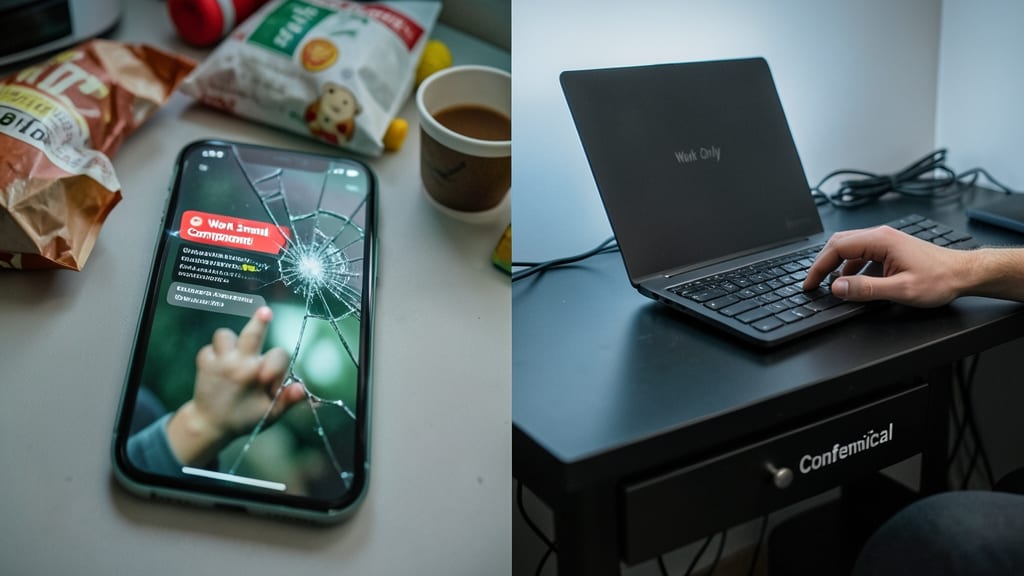
Ever clicked a suspicious link on your phone—only to realize it was your work email account at risk? A dedicated workspace with device isolation creates a digital moat between your personal and professional life, stopping cybercriminals from jumping between accounts like a hacker on a sugar rush.
Start by using separate devices for work and personal tasks (e.g., a company-issued laptop for emails and a personal tablet for streaming). If that’s not possible, leverage virtual desktops (like Windows Sandbox or Parallels) to isolate work apps in a contained environment. For accounts, enforce strict browser profiles—Chrome’s built-in "Work Profile" or Firefox’s multi-account containers keep tabs from bleeding into each other. Tools like Microsoft Intune or Jamf can enforce these rules at an enterprise level, but even free solutions like Standard Notes (for work docs) and Bitwarden (for separate credentials) work for individuals.
This approach is ideal for freelancers juggling client work, contractors handling sensitive data, or anyone whose personal device might get infected. By limiting an attacker’s access to just one account, you turn your digital life into a zero-trust fortress. 💪