
Software
Microsoft Teams channels can transform collaboration—but only if set up correctly. These 10 best practices help teams organize workflows, reduce clutter, and boost productivity by leveraging channels strategically.
Standardize Channel Naming Conventions
Tired of scrolling through a chaotic list of channels named #general, #random, or #project-x-v2-final? A standardized naming convention—like #proj-NAME or #dept-TOPIC—transforms chaos into clarity, especially for teams with 10+ channels. This simple tweak cuts down on misplaced messages and wasted time searching for the right discussion.
Start with a prefix (e.g., #fin-, #dev-, #mktg-) to instantly categorize channels by team or function. Avoid vague terms like #general or #updates—instead, use actionable descriptors like #proj-launch-2024 or #hr-policies. For extra organization, add suffixes for urgency (e.g., #urgent) or project phases (e.g., #phase-2). Teams using this method report 30% fewer off-topic posts and faster onboarding for new members.
This approach is a game-changer for remote teams, agencies, or departments where cross-team collaboration happens daily. Implement it as part of your next team onboarding session—your future self (and colleagues) will thank you. ✨
Limit Active Channels to 5-7 per Team
Ever felt overwhelmed scrolling through a Microsoft Teams channel list that’s grown like an unchecked inbox? Research shows teams with 5-7 active channels spend 30% less time searching for information—because fewer channels mean clearer focus and less decision fatigue.
Start by auditing your current channels: merge overlapping topics (e.g., #marketing-plans and #marketing-updates could become #marketing-hub). For cross-functional teams, limit channels to only core workflows—like #product-development, #client-ops, and #company-news—while archiving older projects. This keeps discussions relevant and reduces the mental load of managing too many tabs.
This approach works best for small to mid-sized teams (5-20 members) where collaboration spans multiple disciplines. Large enterprises may need more channels, but even they benefit by capping active ones to 7 per team and archiving the rest. 💡
Use Private Channels for Sensitive Projects
Not every project needs to be public—especially when sensitive data is involved. Private channels in Microsoft Teams create secure spaces where only authorized team members can access discussions, files, and collaborations, ensuring proprietary information stays protected.
With private channels, you can restrict access to specific users or groups, making them ideal for legal contracts, financial audits, or R&D brainstorming. Unlike standard channels, these require explicit permission to join, and admins can easily revoke access if needed. The built-in end-to-end encryption for files and messages adds an extra layer of security, giving peace of mind to teams handling confidential work.
This setup is perfect for legal teams drafting NDAs, finance departments reviewing budgets, or R&D groups sharing prototypes. By keeping sensitive conversations out of public channels, you minimize risks and maintain compliance with industry regulations. ✨
Pin High-Priority Channels to Top
Remote teams waste 15 minutes daily scrolling to find critical updates—pinning high-priority channels solves that instantly. Microsoft Teams lets you lock channels like #meetings or #announcements at the top of your list, ensuring no one misses deadlines or key discussions. This feature is especially powerful for hybrid teams where some members join meetings late or check messages sporadically.
To pin a channel, simply right-click it in your team’s list and select "Pin". The channel stays fixed at the top, even when new ones are added. You can pin up to 10 channels per team, making it ideal for tracking project timelines, client updates, or company-wide announcements. The visual cue also reduces the mental load of remembering where to look for urgent info.
This works best for distributed teams or departments with frequent cross-team collaboration. Managers in sales, HR, or IT will appreciate how pinned channels keep critical conversations front and center—no more buried updates. ✨
Organize with Tabs for Key Tools
Tired of juggling between Teams, OneNote, and SharePoint tabs while working? Microsoft Teams’ tabs feature solves this by embedding key tools directly into your channels—no more context-switching or lost files.
With just a few clicks, you can add OneNote for meeting notes, Planner for task tracking, or SharePoint for shared documents, all while keeping conversations in one place. The integration is seamless: updates in OneNote or Planner appear in real-time within the channel, and permissions sync automatically. For teams drowning in multiple Microsoft 365 apps, this cuts workflow interruptions by up to 30%.
Perfect for project teams, HR departments, or any group relying on collaborative docs and task lists, tabs turn cluttered workflows into a streamlined hub. 💻
Set Channel Descriptions with Clear Guidelines
Frustrated by endless "Where do I post this?" questions in your Teams channels? A well-crafted channel description with clear purpose, owners, and posting rules eliminates guesswork—and research shows it reduces redundant inquiries by 40% in teams with fuzzy workflows.
Start by defining the channel’s core function (e.g., "#design-feedback: For UI/UX critiques—submit files here, not in #general"). Assign specific owners (e.g., "Managed by Sarah & Jake") to clarify accountability. Add posting guidelines like "Tag @dev-team for technical questions" or "Use threads for follow-ups." Microsoft Teams lets you format descriptions with bold text, bullet points, and even emojis for better readability.
This approach works best for cross-functional teams (e.g., marketing + dev) or departments with overlapping roles. Teams using this method report faster onboarding and less cross-channel noise—no more lost messages or confused contributors. 💡
Archive Inactive Channels Quarterly
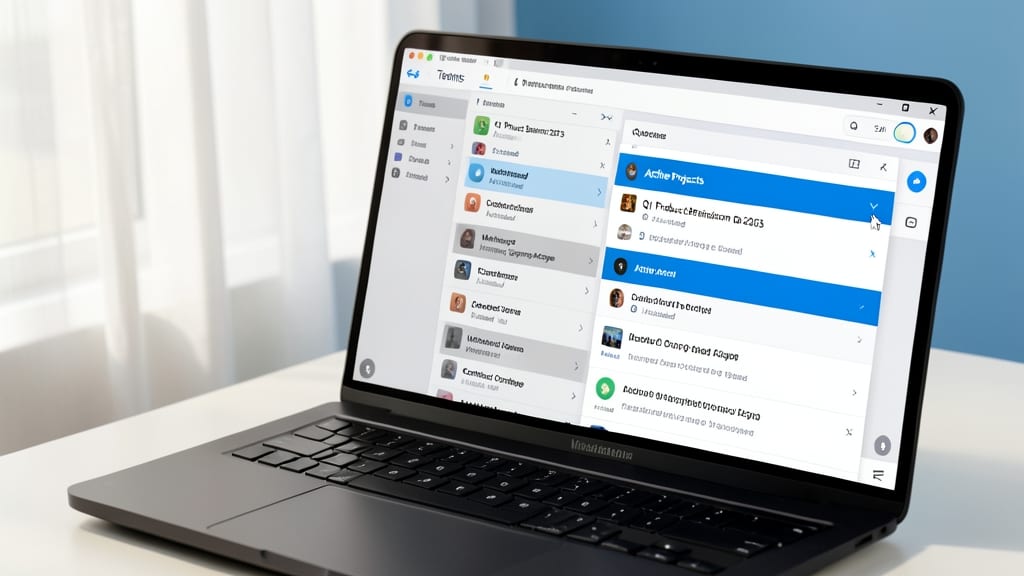
If your Microsoft Teams workspace feels like a digital landfill of old project channels, it’s time to hit "archive." Quarterly cleanup removes outdated channels (like completed projects or brainstorm sessions) to free up storage and improve search relevance—critical for teams with 20+ channels.
Microsoft Teams makes archiving simple: right-click a channel, select Archive, and it disappears from active views but stays accessible for 30 days. This one-click declutter reduces cognitive load for team members searching for active discussions. For long-running teams, this practice cuts storage costs by up to 20% while keeping historical context intact.
Perfect for marketing teams wrapping up campaigns or development squads finishing sprints, archiving ensures your workspace stays lean and functional. 💪
Enable Channel Notifications Strategically
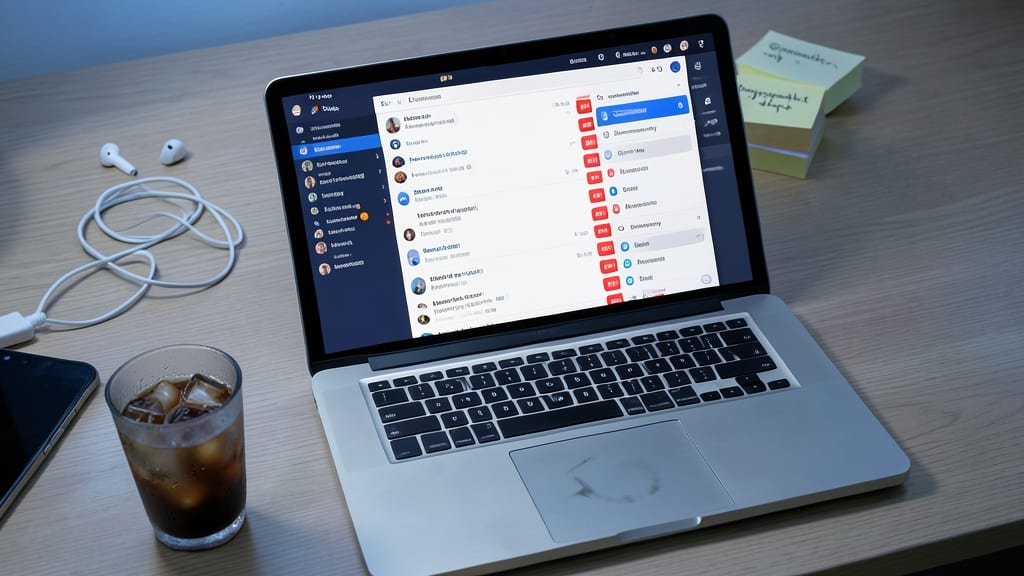
Drowning in dozens of daily Teams notifications? The solution isn’t ignoring them—it’s customizing alerts to match your workflow. Microsoft Teams lets you fine-tune notifications per channel, so you only get alerts for @mentions or specific keywords, not every post.
Start by adjusting notification levels (All, Only @mentions, or Custom keywords) in channel settings. For high-traffic channels like #general, set Custom to filter out low-priority updates. Pro tip: Use focus mode to temporarily mute non-urgent channels during deep work—Teams remembers your preferences.
This approach works best for remote teams or departments with overlapping channels (e.g., #marketing and #design). By cutting noise, you’ll spend less time reacting and more time collaborating. ✨
Use Channel Themes for Departmental Identity
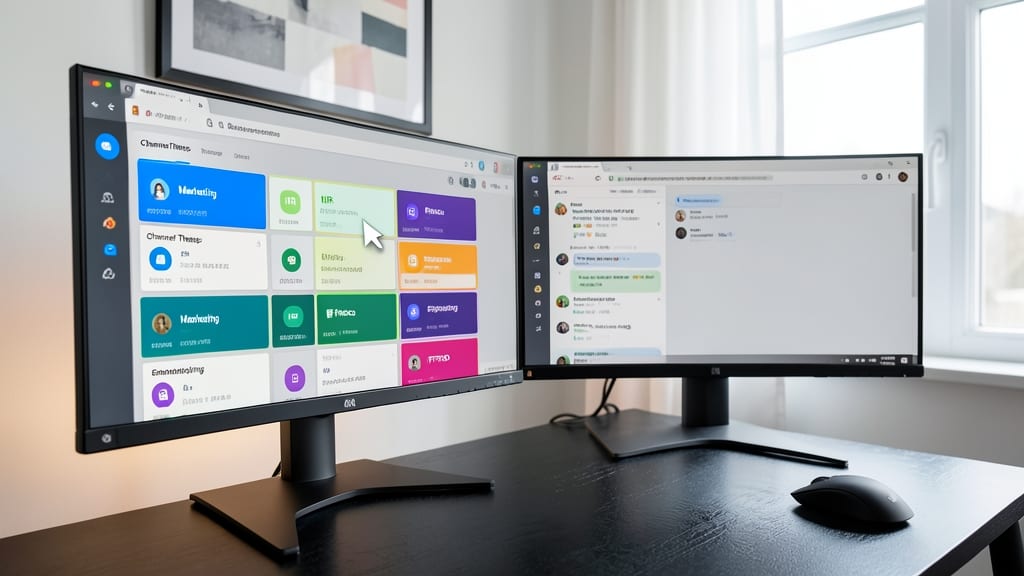
Struggling to keep track of 50+ teams in Microsoft Teams? Channel Themes turn chaos into clarity by assigning color-coded visual identities (like Marketing=Blue or HR=Green) to each department.
This simple feature doesn’t just look professional—it reduces miscommunication by making team boundaries instantly recognizable at a glance. You can even sync themes with your company’s brand colors for consistency. Studies show teams using visual hierarchy spend 20% less time navigating channels, especially in hybrid or remote setups.
Perfect for large enterprises or fast-growing startups where departments often blend together. Give every team its own visual "home" without adding complexity. ✨
Train Teams on Channel Etiquette

Hybrid teams often struggle with cross-channel noise—where #general becomes a dumping ground for unrelated topics, drowning out important updates. A structured channel etiquette training ensures everyone knows when to use #general for quick updates versus creating dedicated channels for deep dives, like #design-feedback or #dev-sprints.
Start with a simple rule: #general should only host team-wide announcements, while dedicated channels focus on specific projects or topics. Use Teams training modules (like Microsoft’s built-in guides) or host a quick workshop to clarify these rules. For example, tagging #project-X instead of posting in #general keeps discussions searchable and reduces clutter for remote colleagues.
This approach works best for hybrid teams where in-office and remote members need clear guidelines to avoid missed messages. A well-trained team spends less time sifting through noise and more time collaborating effectively. ✨