
Tip & Trick
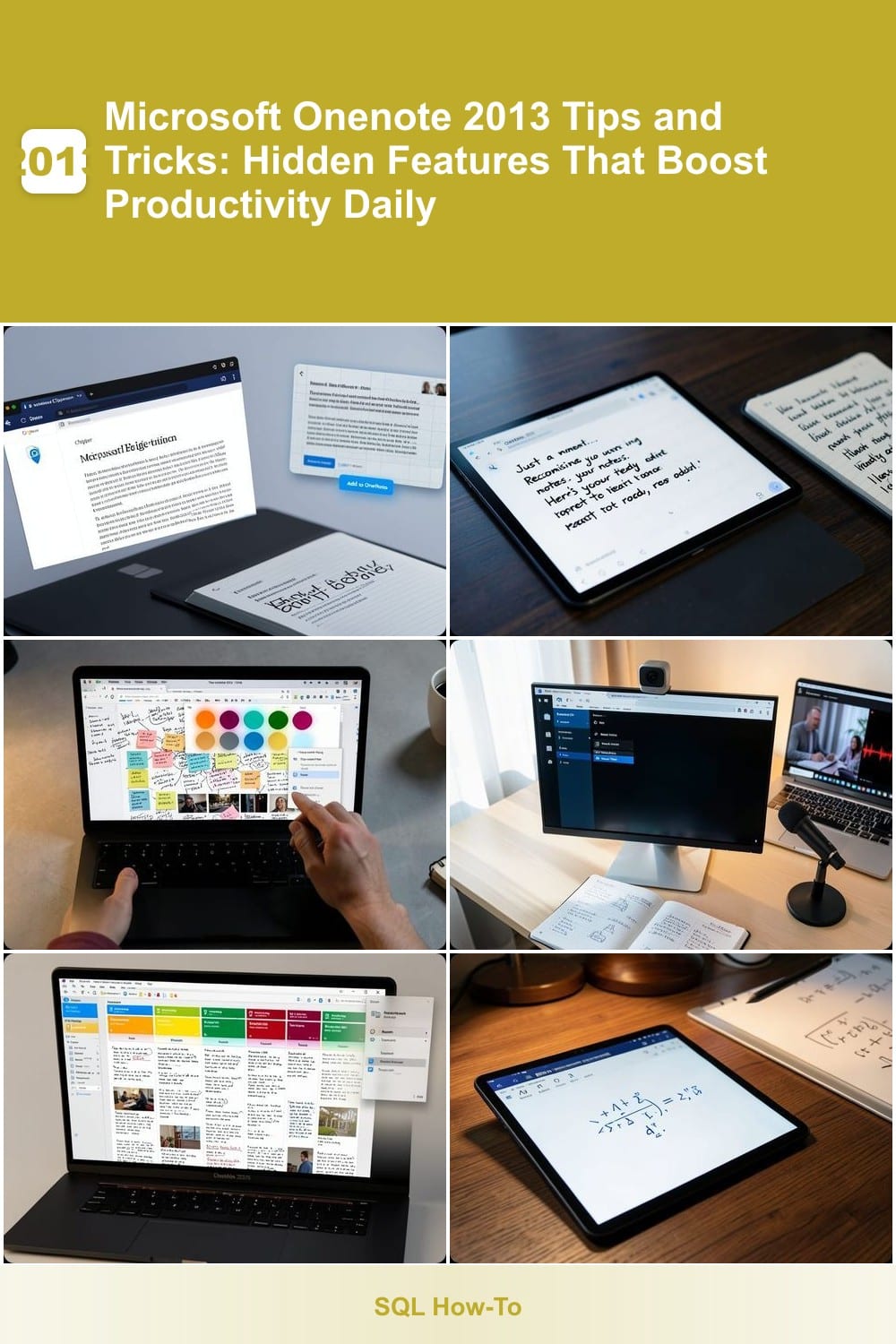
Microsoft OneNote 2013 remains a powerhouse for organization, yet many users miss its most powerful features. These seven hidden tricks will transform how you capture, organize, and retrieve information—saving you hours weekly.
Quick Capture with OneNote Clipper Browser Extension
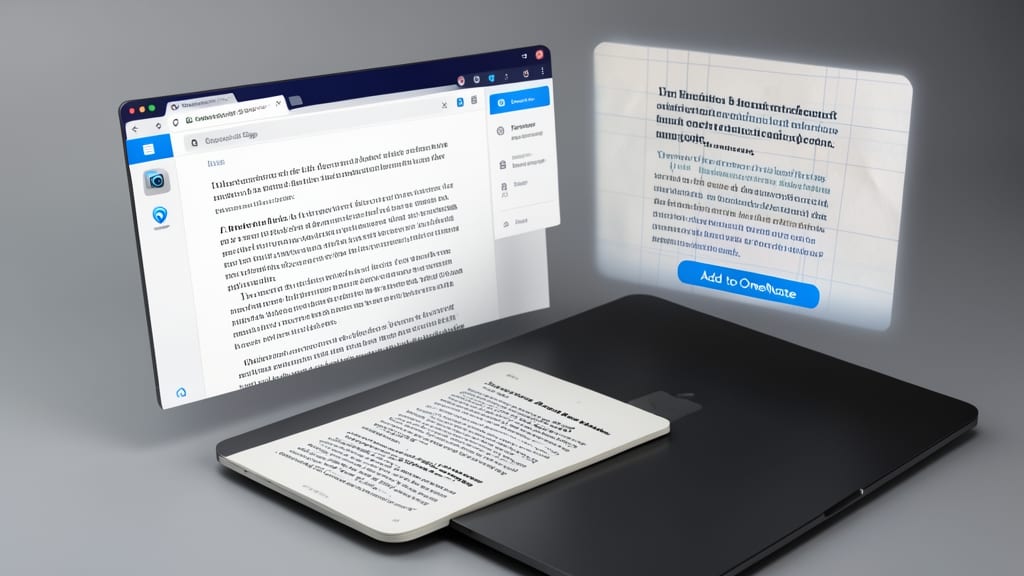
Struggling to save research articles or screenshots without breaking your workflow? The OneNote Clipper browser extension turns your browser into a direct pipeline to your notebook—no copy-pasting or manual uploads required.
Install it from the Chrome Web Store or Microsoft Edge Add-ons, then click the extension icon to save full web pages, screenshots, or highlighted text straight into OneNote. The context menu lets you choose which section to save to, and it even preserves formatting—tables, images, and all. For researchers, this means no more lost PDFs or scattered bookmarks; everything lands neatly in your digital notebook with one click.
Perfect for students compiling lecture notes, professionals archiving client research, or anyone who hates cluttered bookmarks. Try it today and reclaim hours of manual work. ⚡
Handwriting to Text Conversion for Notes
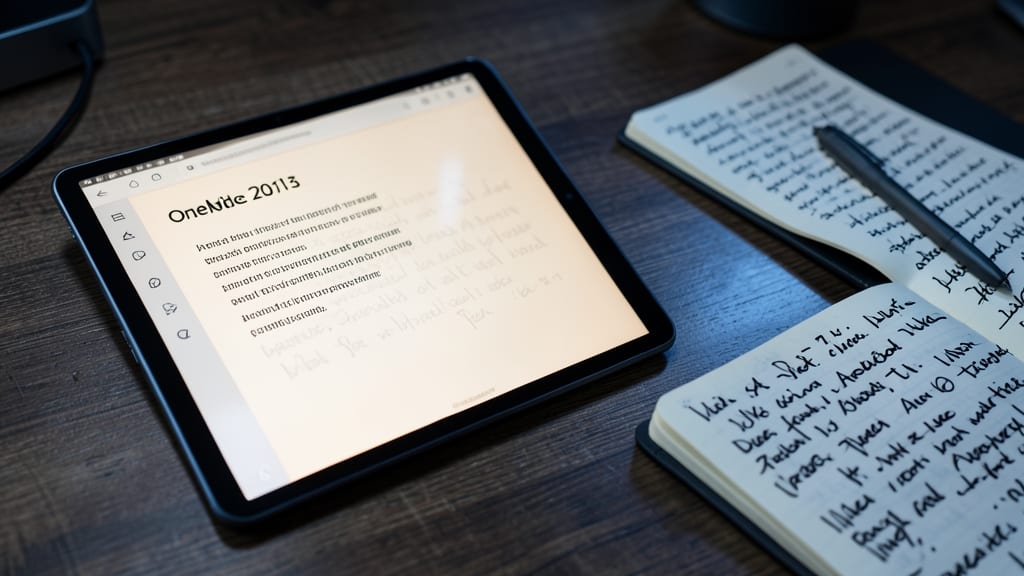
Forget retyping handwritten notes—OneNote 2013’s handwriting recognition feature instantly converts your scribbles into editable text with 90%+ accuracy for clear writing. Whether you’re jotting down meeting minutes on a tablet or sketching ideas during a lecture, this tool preserves your original notes while making them searchable and shareable.
To use it, simply write your notes as usual, then select the text and choose Insert > Text from Picture (or right-click > Copy Text from Picture). OneNote’s OCR engine processes the image in seconds, converting handwritten words, symbols, and even simple equations into digital text. The best part? You can edit the converted text directly—no need to rewrite everything from scratch.
This trick is a lifesaver for students transcribing lectures, professionals reviewing handwritten reports, or anyone who prefers writing by hand but needs digital organization. Say goodbye to lost notes and hello to seamless workflows. ✨
Tagging and Searching with Custom Tags
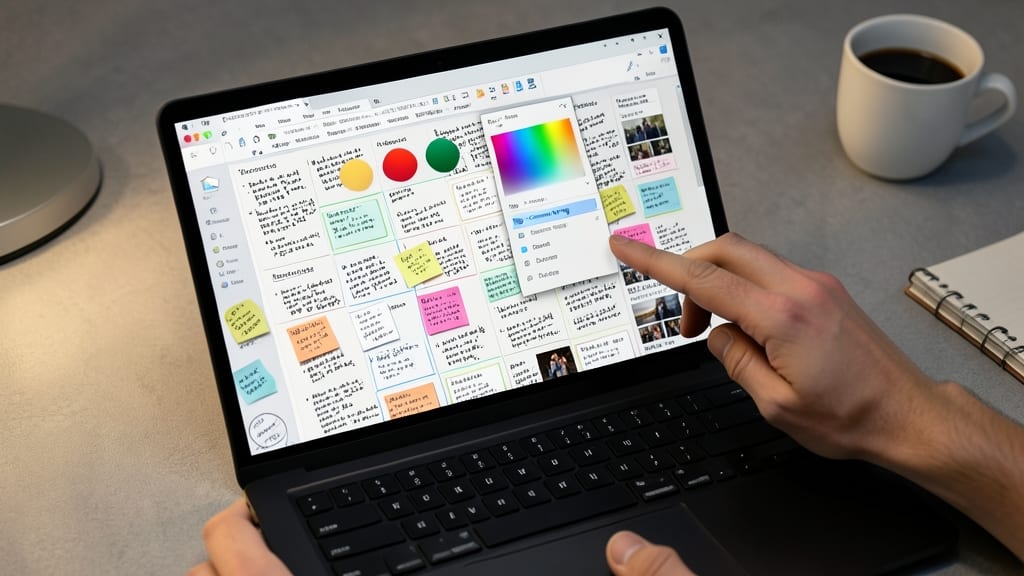
Tired of drowning in a sea of notes with no way to find what you need? Custom tags in OneNote 2013 turn your notebook into a searchable, color-coded powerhouse—no more scrolling through pages to find that one critical detail.
Start by right-clicking any text or image and selecting Tag > Create New Tag. Name it something actionable like "urgent" (red), "meeting" (blue), or "reference" (green), then assign it to notes instantly. These tags appear as color-coded labels in the sidebar, letting you filter notes by category in seconds. The real magic? OneNote’s search function now prioritizes tagged content—type "tag:urgent" to pull up all high-priority items across notebooks.
This feature is a game-changer for project managers juggling deadlines or knowledge workers organizing research. Spend less time searching and more time working—your future self will thank you. ✨
Audio and Video Recording Directly in Notes
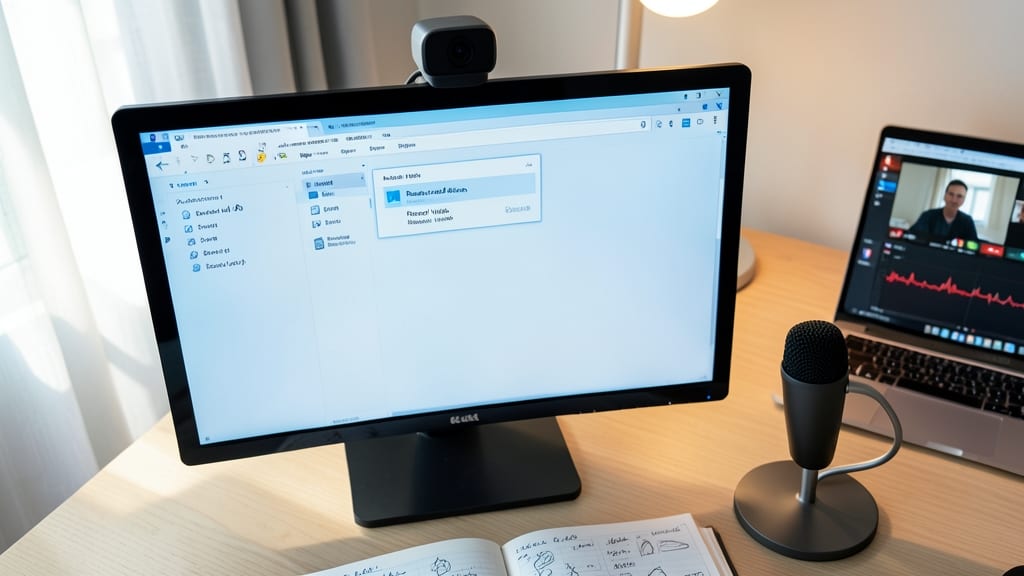
Turn your notes into a multimedia powerhouse by recording audio and video directly within OneNote 2013. This hidden feature lets you embed voice memos or screen recordings—perfect for capturing lectures, client interviews, or spontaneous brainstorming sessions without juggling multiple apps.
Simply click the Insert tab, select Audio Note or Screen Recording, and start capturing. The recordings appear as playable media within your notes, with timestamped playback for easy navigation. You can even annotate over recordings with handwritten notes or typed comments, creating a rich, searchable reference.
Ideal for educators, developers, or anyone who needs to preserve context-rich discussions, this feature works seamlessly with your existing OneNote workflow. No extra software required—just pure, integrated productivity. ✨
Section Tabs for Organizing Large Notebooks
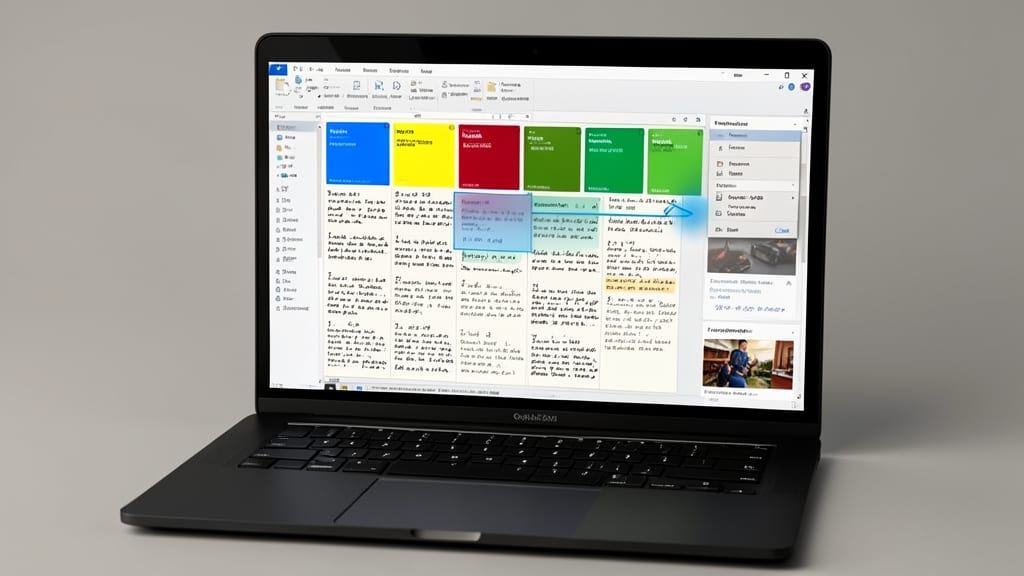
Tired of drowning in a sea of folders when your OneNote notebook grows beyond 50 pages? Section tabs are your visual lifeline—color-coded, drag-and-drop organizers that turn chaos into clarity without nested folders.
Right-click any section header to rename or color-code tabs (choose from 12 built-in colors or custom shades). Need to rearrange? Simply drag tabs left/right—no need to move entire pages. For power users, link sections across notebooks by right-clicking and selecting "Link to Section," creating instant navigation shortcuts. The best part? These tabs appear in the desktop app and web viewer, keeping your workflow consistent.
Freelancers juggling multiple clients or students tracking research projects will love this—section tabs replace the need for separate notebooks while keeping everything searchable. Try it with your next big project and watch your organization transform. ✨
Math and Equation Tools for Problem Solving
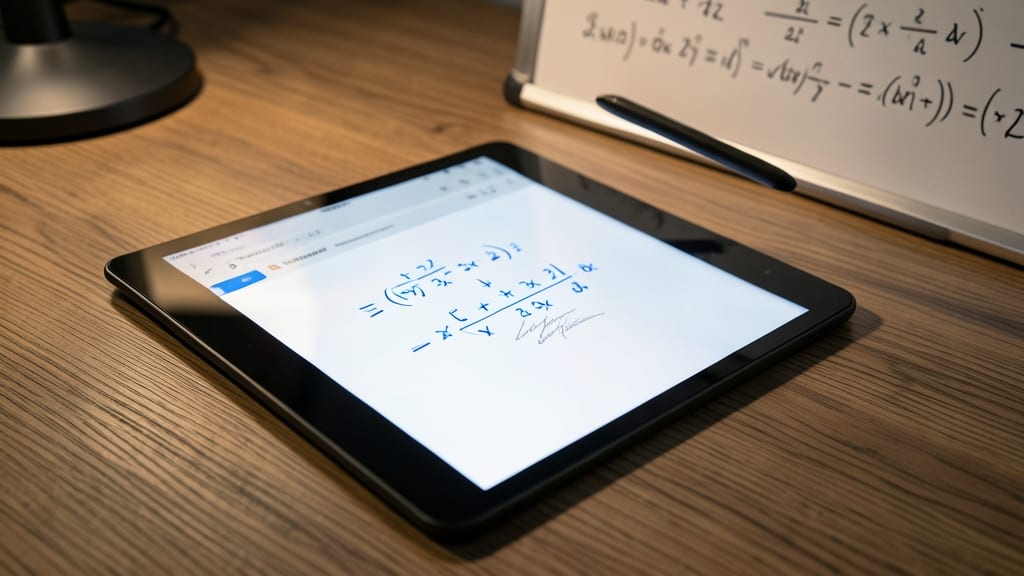
Struggling to solve complex equations during a brainstorming session or lecture? OneNote 2013’s built-in math tools turn your notebook into a full-fledged problem-solving workspace. With just a few clicks, you can write equations by hand, convert them to digital format, and even get step-by-step solutions—no external apps required.
Type or handwrite equations using the Math Assistant (Insert > Equation), then click "Solve" to see solutions instantly. Graph functions directly in your notes, and use the unit converter to switch between measurements (e.g., meters to feet) without leaving OneNote. The Ink to Math feature even recognizes handwritten symbols with high accuracy, making it perfect for engineers sketching designs or students reviewing calculus.
This feature is a game-changer for engineers drafting schematics, scientists analyzing data, or students cramming for exams. No more flipping between calculators and notebooks—everything stays in one place. ✨
Offline Access and Sync Across Devices
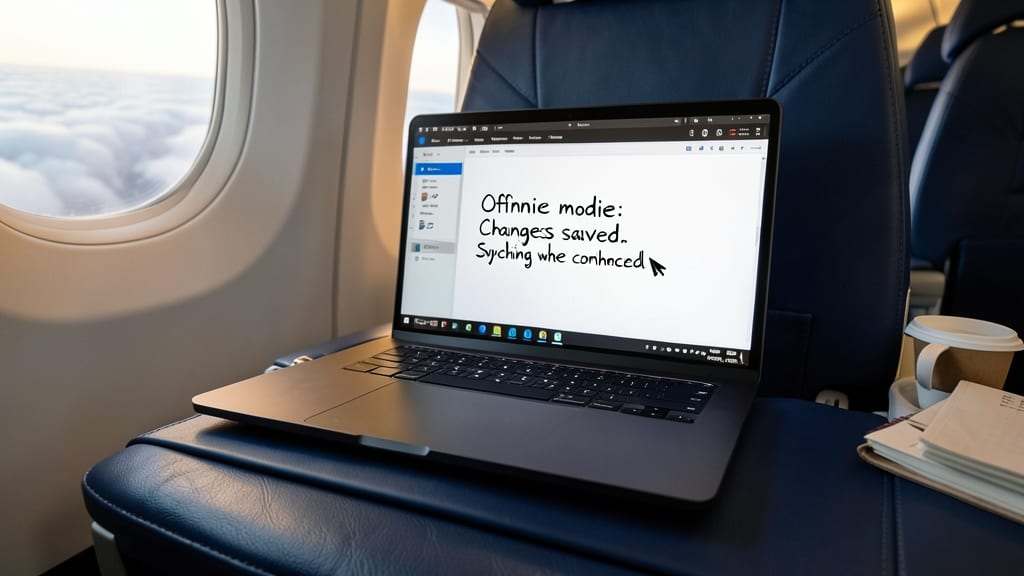
Ever jotted down a brilliant idea during a flight, only to lose it when Wi-Fi reconnects? OneNote 2013’s offline-first sync ensures your notes stay accessible anywhere—no internet required. This feature automatically detects your connection status and syncs changes the moment you’re back online, preserving every detail from your fieldwork or travel adventures.
The magic happens through OneNote’s seamless cloud integration with Microsoft accounts. Simply enable offline mode in File > Options > Advanced, and your notes become instantly editable on any device. Whether you’re drafting a report on a Windows tablet or reviewing meeting notes on your phone, changes sync effortlessly across all synced devices—no manual uploads needed. Conflict resolution handles edits made offline vs. online, so you never lose progress.
Perfect for field researchers, remote workers, or frequent travelers, this feature turns OneNote into your portable knowledge hub. No more worrying about dead zones or forgotten drafts—just focus on capturing ideas, knowing they’ll sync when ready. ✨