
Software
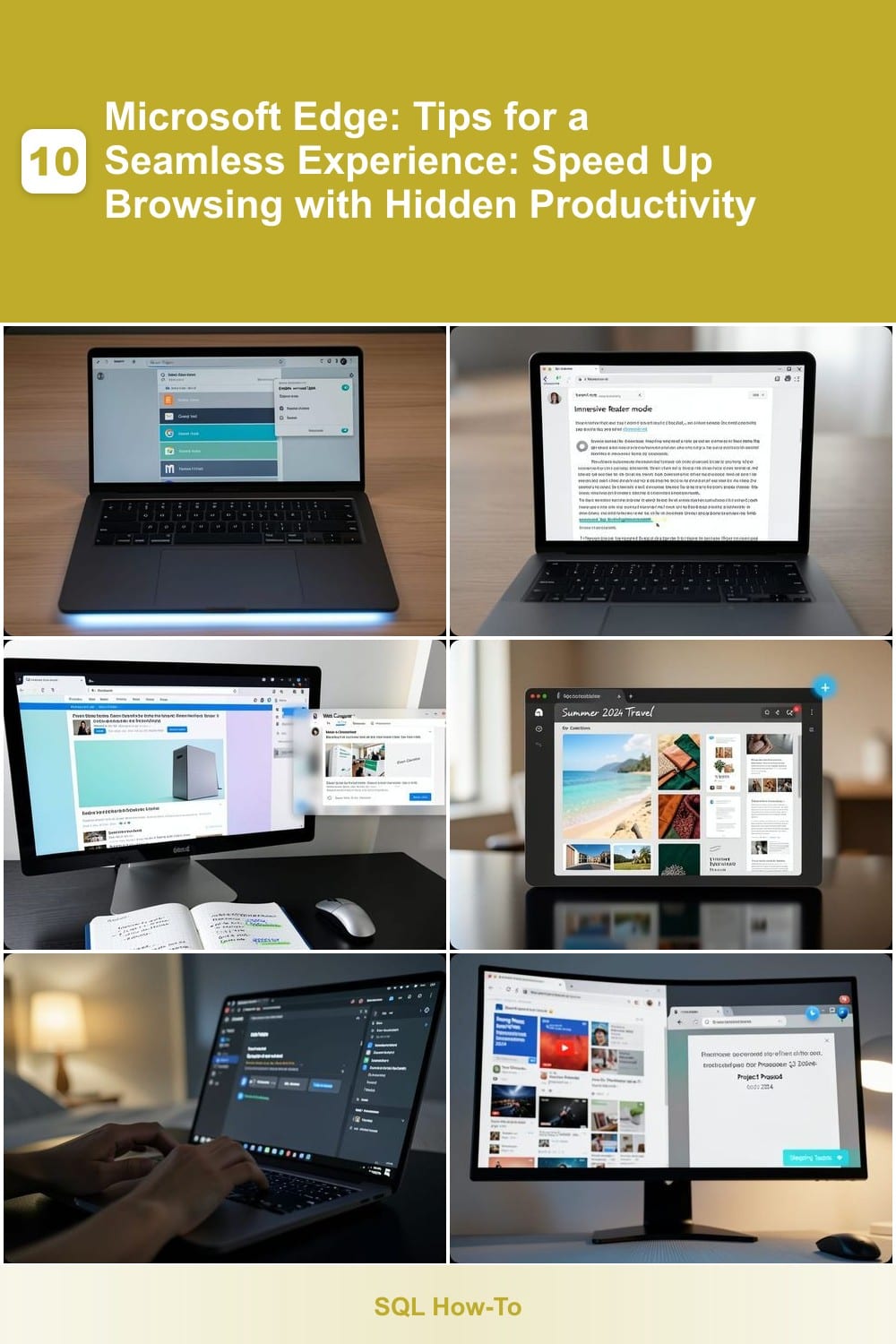
Microsoft Edge is packed with hidden features designed to make browsing faster, more secure, and more efficient. These seven underrated tips will transform your daily web experience by unlocking productivity boosters most users never discover.
Enable Vertical Tabs for Space-Saving Multitasking
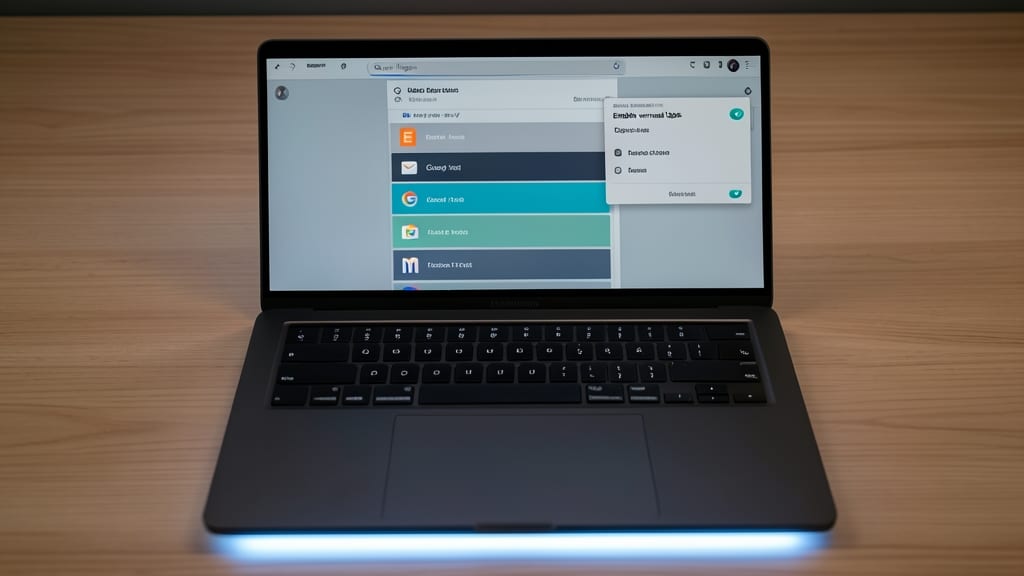
Struggling to fit all your open tabs on a small screen? Microsoft Edge’s vertical tabs feature transforms clutter into clean, organized columns—ideal for users with limited real estate like laptop users or those juggling multiple projects.
To enable it, type edge://flags in the address bar, search for "Vertical Tabs," and set it to Enabled. Once activated, tabs stack neatly on the left, freeing up horizontal space while keeping everything visible. You can even pin tabs to the sidebar for quick access, and the feature works seamlessly with Edge’s Collections for project-based workflows.
Perfect for developers testing multiple sites, researchers tracking sources, or anyone drowning in tabs. Try it and reclaim your screen—no more tab overload! ✨
Use Immersive Reader for Focused Content Consumption
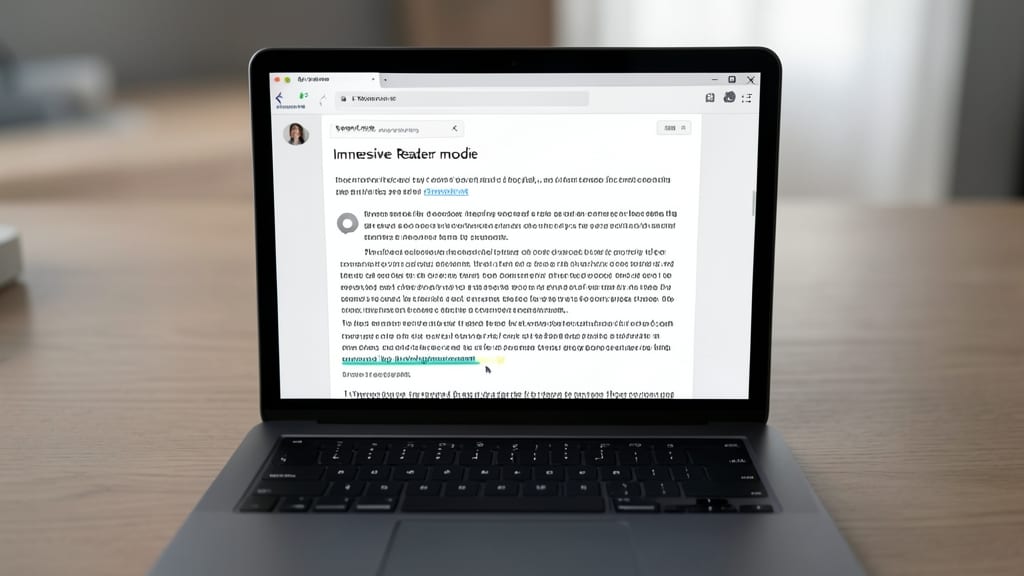
Struggling to focus while reading dense articles or documents? Microsoft Edge’s Immersive Reader strips away distractions by removing ads, sidebars, and clutter—leaving only the text you need. This built-in tool also highlights each line as you read, reducing eye strain and improving retention.
With customizable font sizes, spacing, and even dyslexia-friendly color schemes, Immersive Reader adapts to your needs. It also supports text-to-speech for hands-free learning, making it perfect for students cramming for exams or professionals analyzing reports. Access it instantly via the Immersive Reader icon in Edge’s toolbar.
Perfect for researchers, writers, or anyone drowning in complex web content, this tool turns chaotic pages into a distraction-free zone. Give your brain the focus it deserves! ✨
Activate Web Capture for Instant Research Notes
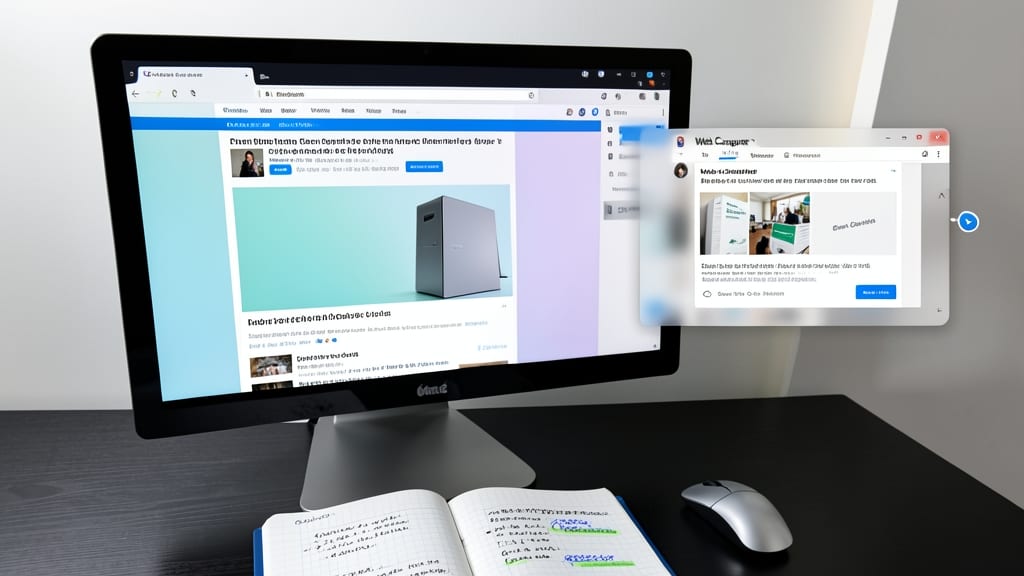
Tired of losing research notes when copying and pasting from web pages? Microsoft Edge’s Web Capture lets you save entire articles, images, and formatting in seconds—no more broken links or lost content.
With just one click, you can highlight text, capture images, and save everything to OneNote or a local file. The tool preserves tables, graphs, and styling, making it perfect for academics or professionals who need pristine references. Plus, it integrates seamlessly with Microsoft 365 apps for instant note-taking.
Students writing papers or researchers compiling data will love this zero-configuration solution that keeps everything organized. ⚡
Set Up Collections for Organized Visual Bookmarking
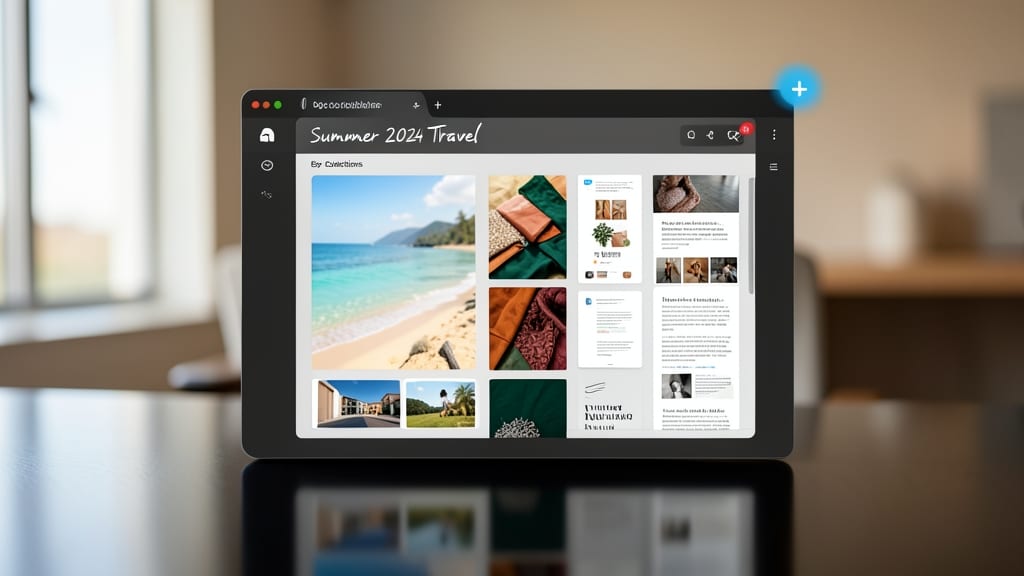
If you're drowning in bookmarks but craving a more visual, organized approach, Microsoft Edge's Collections turns your browser into a digital mood board. This feature lets you group related web pages—like travel itineraries, design inspiration, or research sources—into customizable collections with personalized cover images and descriptive titles.
To get started, simply right-click any webpage and select "Add to collections" (or use the Ctrl+Shift+S shortcut). You can then customize each collection with a custom cover image, rename it, and even add notes. The drag-and-drop interface makes rearranging effortless, while syncing across devices ensures your collections stay with you. Perfect for creatives, students, or anyone who loves visual organization!
This is your digital scrapbook, but better—no physical clutter, just instant access to curated content. Whether you're planning a project or saving inspiration, Collections keeps everything visually organized and just a click away. ✨
Enable Dark Mode for Reduced Eye Strain
Late-night browsing or sensitive eyes? Microsoft Edge’s Dark Mode is your visual relief—cutting blue light emission by up to 30% while giving your screen a sleek, modern look. This isn’t just aesthetics; studies show reduced eye strain during extended sessions, making it ideal for developers debugging code at 2 AM or anyone working in low-light conditions.
To enable it, head to edge://settings/themes and toggle Dark—it’s that simple. The mode automatically adjusts to dark system themes on Windows 10/11, syncing across devices if you’re signed in. For extra comfort, pair it with Night Light (Windows) or Night Shift (macOS) to further reduce eye fatigue. The result? A softer glow that feels gentler on your retinas while keeping your workflow uninterrupted. 💡
Use Sleeping Tabs to Free Up Memory
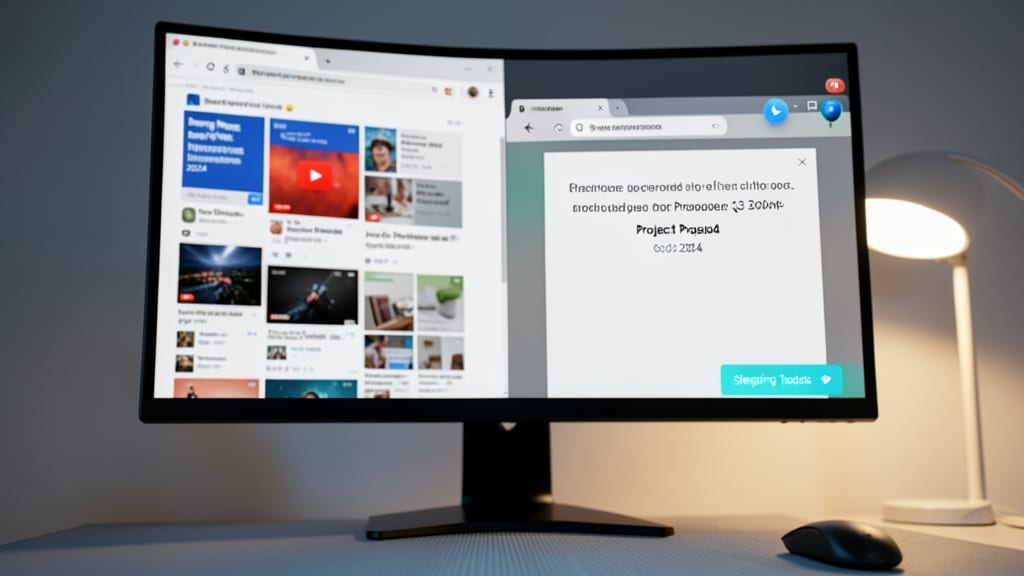
If your browser starts feeling sluggish with dozens of tabs open, Sleeping Tabs in Microsoft Edge is your secret weapon. This clever feature intelligently suspends inactive tabs to free up memory while keeping them instantly accessible—no more waiting for pages to reload when you switch back.
Here’s how it works: Edge automatically puts tabs to sleep after 30 minutes of inactivity (configurable), reducing memory usage by up to 50% in tests. You’ll still see a moon icon on sleeping tabs, and with one click, they wake up fully restored. The best part? It’s zero-config—just enable it in edge://settings/system under the "Memory Saver" section.
This is a game-changer for developers juggling multiple IDEs, researchers tracking sources, or anyone who hates closing tabs "just in case." Give it a try and reclaim your system’s resources without losing productivity. ✨
Customize Keyboard Shortcuts for Power Users
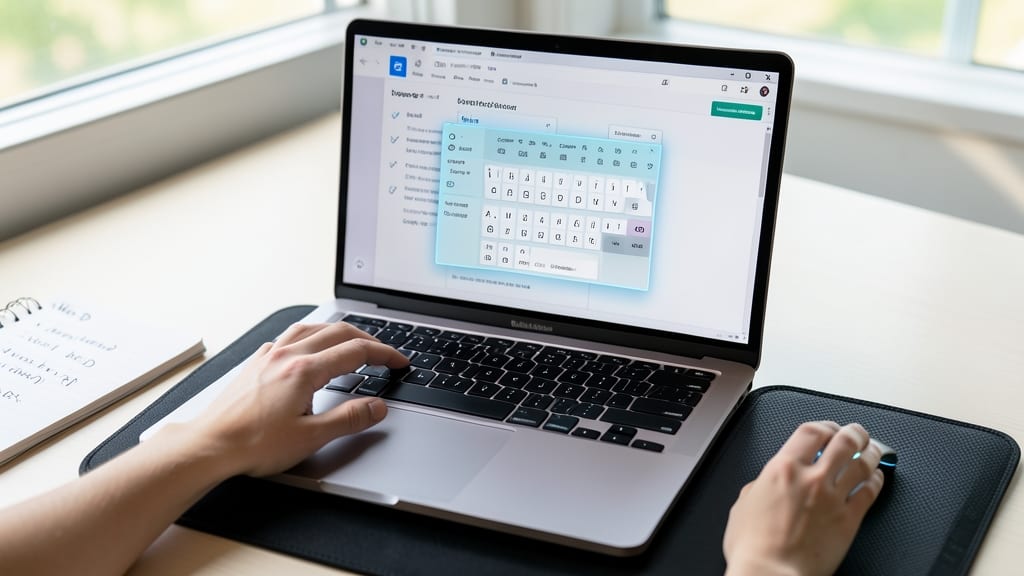
If you spend hours typing commands instead of clicking, Microsoft Edge’s custom keyboard shortcuts can shave minutes off your daily workflow. Unlike most browsers, Edge lets you remap nearly every action—from opening new tabs to managing extensions—using simple key combinations you define.
Access the feature via edge://settings/shortcuts to see a full list of commands. You can override defaults like Ctrl+T (new tab) or assign shortcuts to rarely used actions such as mute site notifications. Sync your customizations across devices via your Microsoft account, ensuring consistency whether you’re coding, writing, or managing projects.
This is a game-changer for developers, writers, and power users who chain commands together. Once set, your shortcuts become muscle memory—eliminating the need to reach for the mouse. ⚡