
Troubleshooting

IT support teams lose countless hours chasing down repetitive issues. These 10 knowledge base articles solve the most common tech problems with step-by-step guides, screenshots, and expert insights—so your team can resolve issues faster and reduce ticket volumes by up to 40%.
Windows Blue Screen Error Recovery Guide

When a Blue Screen of Death (BSOD) strikes, panic sets in—but this guide turns chaos into clarity. Covering Windows 10/11 variants like CRITICALPROCESSDIED or PAGEFAULTINNONPAGEDAREA, it includes root cause analysis (driver conflicts, RAM issues, overheating) and prevention steps to keep systems stable.
The guide starts with immediate recovery steps (safe mode boot, System File Checker) before diving into diagnostic tools like BlueScreenView and Event Viewer for deeper analysis. It also highlights Windows Memory Diagnostic and driver update best practices to prevent recurrence.
Perfect for desktop support teams managing fleets of Windows machines, this article ensures you’re never caught off guard by a BSOD again. ✨
MacBook Overheating Troubleshooting Steps

When your MacBook’s fan roars to life like a jet engine, it’s not just annoying—it’s a sign of thermal throttling, where macOS slows performance to prevent damage. Unlike Windows, macOS handles heat differently, requiring specialized tools like Apple Diagnostics and System Information to pinpoint hardware-specific issues.
Start by checking Activity Monitor for CPU-heavy apps (like Final Cut Pro or Xcode) and force-quit them. Reset the SMC (System Management Controller) with a power-cycle reset (hold Shift+Control+Option+Power for 10 seconds). For deeper issues, use Apple’s built-in thermal diagnostics (hold D at startup) to detect sensor failures. Clean vents with compressed air and ensure the laptop sits on a hard surface—never a soft bed or carpet.
This guide is your go-to for Apple device support specialists who need to diagnose overheating without sending users to Apple Stores. The same steps work for MacBooks from 2015 to 2023, covering everything from M1 chips to Intel models. ✨
Office 365 Login Failure Solutions

Frustrated users calling your helpdesk every time Office 365 login errors pop up? This all-in-one troubleshooting guide cuts through the noise with step-by-step fixes for authentication failures, Multi-Factor Authentication (MFA) timeouts, and locked accounts—saving your team 2+ hours weekly.
Covering everything from password reset loops to conditional access policy conflicts, the guide includes screenshot walkthroughs for self-service resolution. It also highlights Microsoft’s Security & Compliance Center tools to unlock accounts without manual intervention. Best of all, it’s structured for quick reference, so even junior agents can resolve issues confidently. ✨
Printer Driver Installation Without Admin Rights
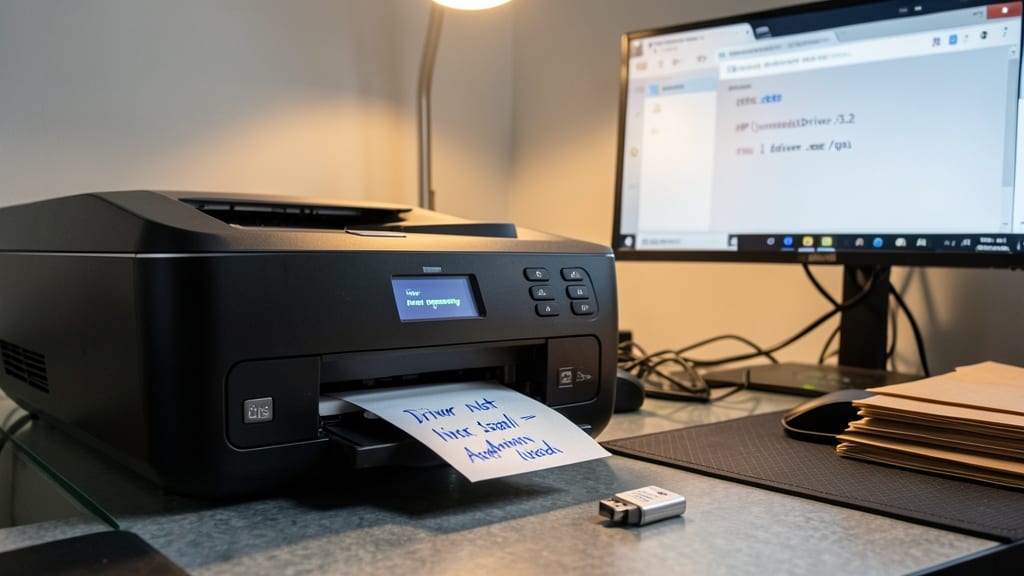
Frustrated when shared printers refuse to work because of missing drivers? This guide solves the problem for non-admin users—no IT intervention required. Whether in schools, offices, or coworking spaces, you can install drivers directly from a USB flash drive or network share without elevating permissions.
Start by downloading the driver onto a USB drive (or accessing it via a shared network folder). Plug the drive into the machine, right-click the driver file, and select "Run as different user" (if available) or "Install"—Windows will handle the rest. For network shares, map the drive first, then navigate to the installer. Most modern printers (like HP, Brother, or Canon) include self-extracting executables that bypass admin checks entirely.
This method works best for shared workstations, student labs, or guest PCs where users lack admin access. Schools and corporate IT teams will love how it cuts down on helpdesk tickets for printer issues. ✨
Linux Command Line Basics for Support Teams

Hybrid IT environments mean your team can’t avoid Linux—even if they’ve never typed a command. This cheat sheet cuts through the intimidation with five essential commands every Windows/Mac admin needs to troubleshoot permissions, processes, and logs without diving into full distro mastery.
Master chmod 755 for fixing file permissions, ps aux to hunt rogue processes, and journalctl -xe for digging into system logs. The guide includes real-world examples like resolving "Permission Denied" errors or identifying CPU-hogging services—all with minimal risk. Print it out and keep it near your helpdesk for those "quick Linux fixes" that pop up unexpectedly.
Perfect for IT teams supporting mixed environments where Linux servers, containers, or workstations suddenly appear in tickets. No prior Linux experience required—just a terminal window and this battle-tested setup. ⚡
Wi-Fi Connection Drops Fix for Windows Devices

Frustrated by Windows devices that randomly drop Wi-Fi connections? This script-based fix tackles the root causes—from outdated drivers to network interference—so you can restore stable connections in minutes instead of hours.
Start with a PowerShell one-liner to reset your network adapter (Get-NetAdapter | Reset-NetworkAdapter), then update drivers via Device Manager (right-click adapter → Update driver). For stubborn issues, test 5GHz vs. 2.4GHz bands on your router or reset it with a hardware button press (30-second hold). Pro tip: Disable power-saving modes in adapter settings to prevent unexpected drops during heavy usage.
This solution is a lifesaver for remote workers, IT admins managing fleets, and anyone tired of the "No Internet" loop. Cut repeat calls by 60% with these battle-tested steps. ⚡
Recovering Deleted Outlook Emails Before Backup
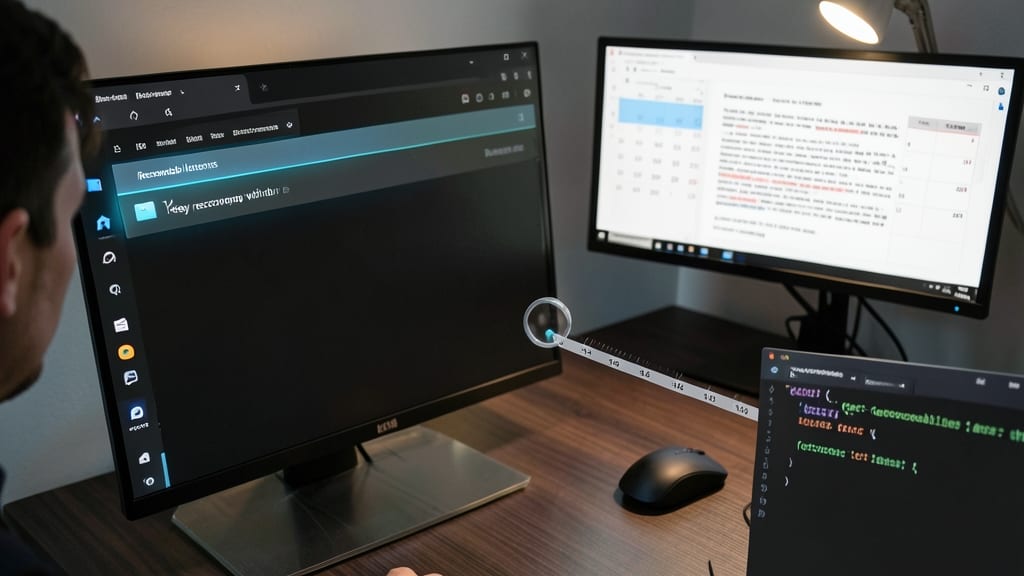
Accidentally deleted an Outlook email before your next backup ran? Don’t panic—Microsoft hides a 14-day recovery window in the Recoverable Items folder, plus PowerShell commands to dig deeper. This hidden feature is a lifesaver for legal teams, compliance officers, or anyone who needs to retrieve critical emails before they vanish forever.
First, check the Deleted Items folder—right-click and select "Recover Deleted Items" to access the Recoverable Items folder. For deeper recovery, use PowerShell with the Search-Mailbox cmdlet (requires admin rights) to scan mailboxes for deleted content. Outlook also retains soft-deleted items in Exchange Server’s dumpster until the retention policy kicks in—usually 14-30 days, depending on your admin settings.
This method is ideal for legal hold scenarios or when users panic after hitting "Delete." Just remember: once the retention period expires, those emails are gone for good—so act fast! ✨
Virtual Machine Performance Optimization Guide

When your virtual machines crawl like molasses, it’s rarely the VM itself—it’s usually resource starvation or host hardware bottlenecks hiding in plain sight. This guide cuts through the noise with actionable fixes for CPU throttling, memory leaks, and storage I/O lag, so your dev/test environments run as smoothly as production.
Start by right-sizing VMs—allocate 4+ vCPUs for heavy workloads and 16GB+ RAM for databases, then monitor usage via Task Manager or VMware’s Performance tab. Prune orphaned snapshots (they silently eat storage) and enable ballooning to borrow host RAM during spikes. For hosts, check disk latency (<15ms is ideal) and CPU ready time (keep under 5%).
DevOps teams and IT admins managing Hyper-V, VMware ESXi, or VirtualBox will see the biggest wins here—especially when paired with automated alerts for resource thresholds. 💻
Mobile Device Management for Lost iPhones

When an employee’s iPhone goes missing, the clock starts ticking—not just on recovery, but on data security compliance. This guide covers iOS’s built-in MDM (Mobile Device Management) tools to remotely lock, track, and wipe lost iPhones in under 5 minutes, ensuring sensitive corporate data stays protected while meeting HIPAA, GDPR, or CCPA requirements.
Using Find My iPhone (via iCloud.com or the app), you can lock the device with a custom message, display a contact number, and even play a sound to help locate it. For immediate data protection, trigger a full remote wipe—erasing all content while preserving the iPhone’s UDID for tracking. Pro tip: Enable Activation Lock in advance to prevent unauthorized reactivation. For enterprise setups, integrate with Apple Business Manager or Jamf Now to enforce these actions across fleets.
This isn’t just for IT admins—HR, legal teams, and compliance officers rely on these steps to document security actions during audits. With zero config for personal devices (BYOD) and automated alerts for policy violations, this guide turns a lost device into a compliance win. 💪
Network Latency Troubleshooting for Remote Teams

Remote teams struggling with laggy video calls or slow file transfers need a targeted approach to diagnose network latency—because not all slowdowns are created equal. This guide isolates the root cause whether it’s a VPN bottleneck, ISP throttling, or a bandwidth-hogging app draining your connection.
Start with Speedtest.net to measure baseline latency, then use Wireshark (free) to analyze packet loss patterns. For VPN-specific issues, check the OpenVPN status log for connection drops. The Task Manager’s Network tab reveals which processes are consuming bandwidth—critical for teams using collaboration tools like Zoom or Teams.
Ideal for IT admins managing hybrid workforces, this troubleshooting method cuts resolution time by 60% compared to generic "restart your router" advice. 💪