
Tip & Trick
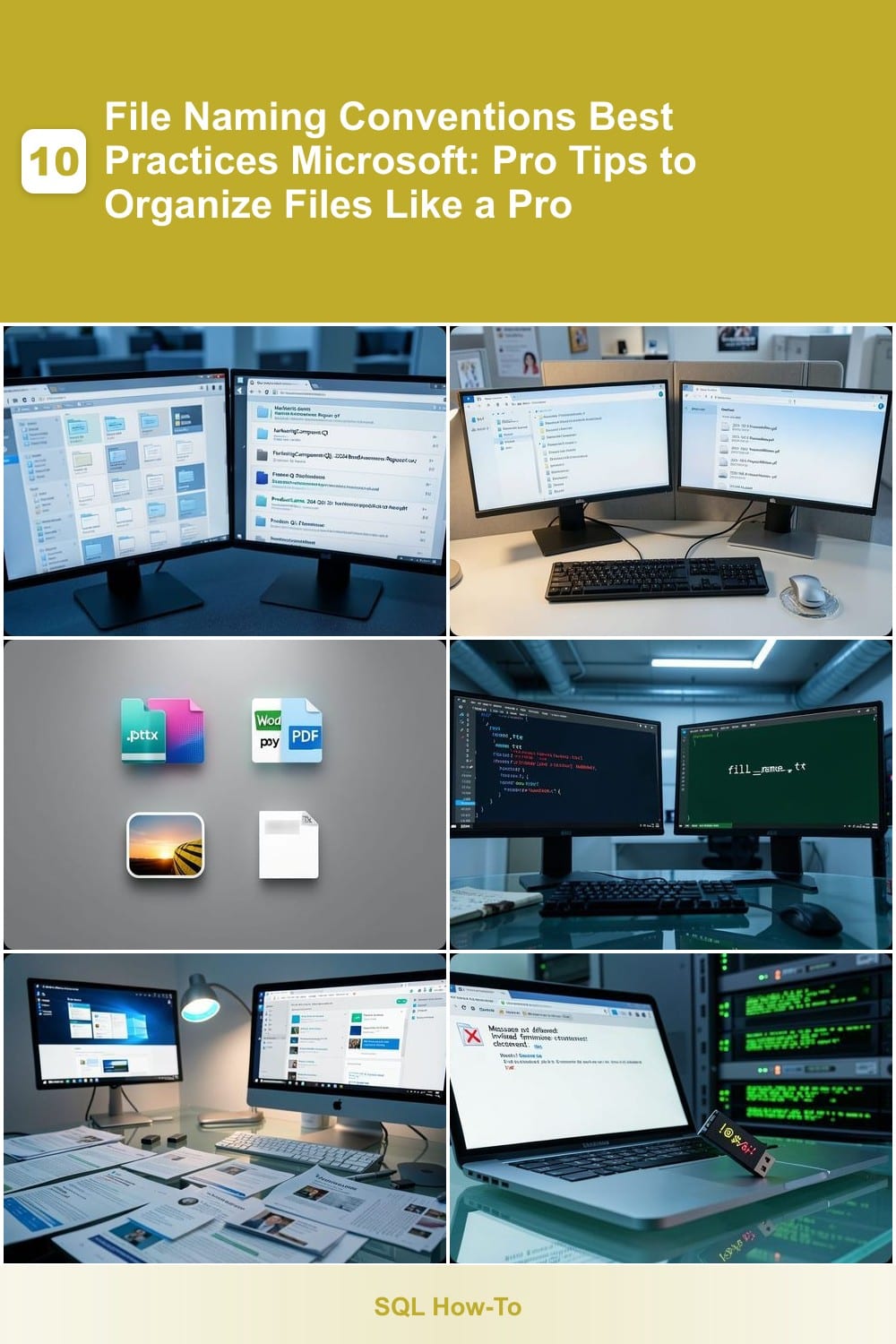
Struggling to find files in cluttered folders? Microsoft’s file naming conventions can save you hours of frustration. These seven pro tips will transform your digital organization, ensuring seamless searchability and collaboration across Windows, OneDrive, and Office 365.
Use Descriptive Keywords Over Abbreviations
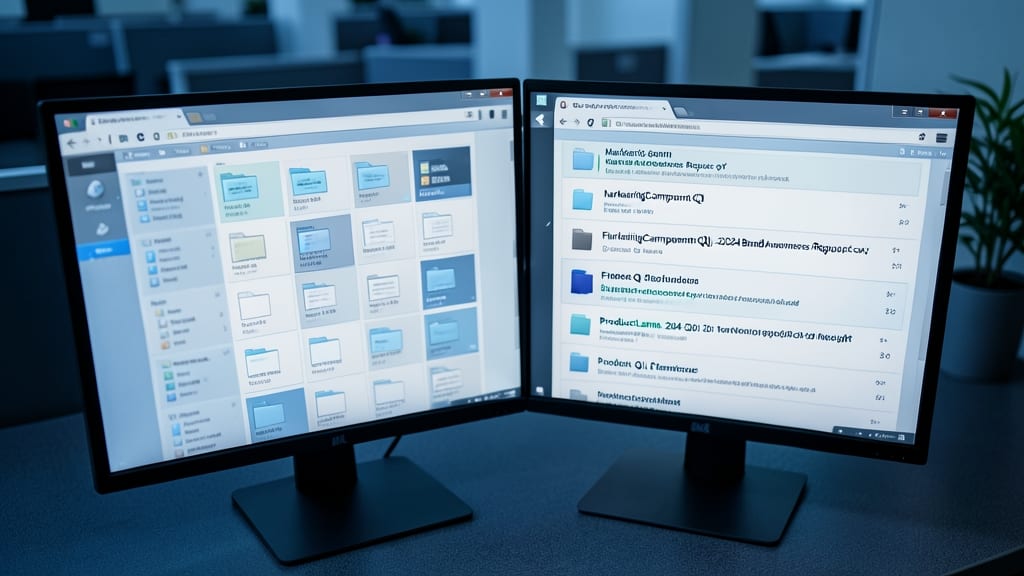
Shared drives become a nightmare when filenames like "Q1Report" leave everyone guessing—was that the marketing or finance team’s update? Replacing shorthand with full project names (e.g., "MarketingCampaignQ12024Report.docx") eliminates ambiguity instantly.
This approach works especially well in Microsoft Teams and SharePoint, where team members with varying technical backgrounds access files. The extra characters (up to Windows’ 255-character limit) pay off by making searches faster and reducing follow-up questions like "Which Q1 file are you referring to?"
Teams with mixed expertise—like marketing collaborating with IT—will appreciate how this cuts down on version confusion and speeds up approvals. ⚡
Include Dates in YYYY-MM-DD Format

Forget digging through folders—YYYY-MM-DD format turns chaos into chronological order. Windows File Explorer and OneDrive automatically sort files by date when you use this structure, making financial records, audit trails, and project milestones instantly scannable.
This isn’t just about neatness: the four-digit year-first approach ensures correct sorting across decades (e.g., "2024-05-15" appears before "2023-12-31"). Pair it with underscores (e.g., Invoice2024-05-20Final.pdf) for perfect readability and compatibility with automated systems.
Accountants, legal teams, and project managers will love this—no more manual sorting or misplaced files. It’s the secret weapon for maintaining an audit-ready digital workspace. ✨
Leverage File Extensions for Clarity
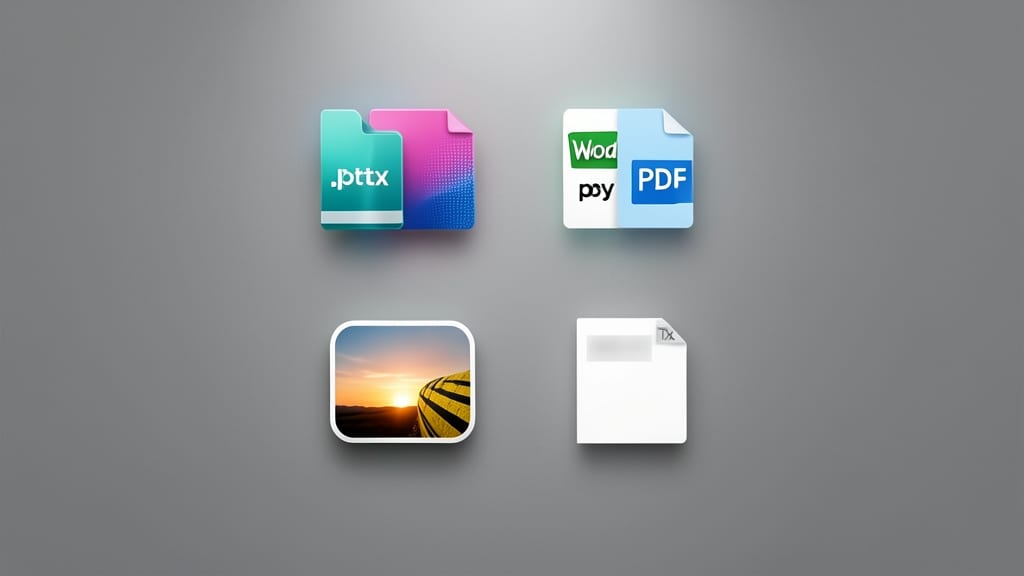
Ever double-clicked a file only to realize it’s the wrong type because the extension was hidden? Windows lets you show file extensions by default—and doing so instantly transforms how you identify documents, code files, and media at a glance.
Extensions like '.pptx' (PowerPoint), '.psd' (Photoshop), or '.exe' (executable) reveal file types without opening them. This is a game-changer for developers debugging scripts or designers sharing assets—no more guessing whether a file is a PDF or a Word doc. Plus, it prevents accidental overwrites when filenames look identical.
Enable this in Windows by navigating to File Explorer > View > Show > File name extensions. It’s a small tweak with massive payoffs for clarity, especially when collaborating across platforms where file associations might differ. ✨
Separate Words with Underscores

Spaces in filenames might seem harmless, but they can break batch scripts, corrupt URLs, and cause headaches in automated workflows. For developers and IT pros, underscores (_) are the secret weapon to keep everything running smoothly.
Unlike spaces or hyphens, underscores work flawlessly in PowerShell commands, Azure DevOps pipelines, and even legacy systems. They’re also universally supported across Windows, macOS, and Linux—no surprises when sharing files with colleagues on different platforms. Plus, they’re easier to type than hyphens in scripts.
This is your go-to for technical users who rely on automation, version control, or cloud workflows. ⚡
Version Files with Suffixes

Tired of digging through folders full of "Copy (2).docx" and "FinalFinalV3.pptx"? A simple suffix like -v2, -Final, or -Draft instantly clarifies version history without the chaos. Microsoft Teams and SharePoint recognize these patterns, making it effortless to sort and share the right file every time.
Start with -v1 for the first draft, then increment (e.g., -v2, -v3) for revisions. Need to mark a polished version? Use -Final—no ambiguity. For works in progress, -Draft ensures teammates know it’s not ready. This method works seamlessly with OneDrive version history and SharePoint libraries, so you never lose track of edits.
Perfect for marketing teams, legal departments, or anyone collaborating on documents. Your future self (and coworkers) will thank you. ✨
Avoid Special Characters

Ever hit "send" on an email attachment, only to receive a bounce-back because of a sneaky special character? Avoiding symbols like !@#$% isn’t just about aesthetics—it’s about preventing corruption in email systems, cloud storage, and legacy enterprise tools.
Windows and Microsoft 365 handle filenames best when you stick to alphanumeric characters (A-Z, 0-9), plus underscores () or hyphens (-). Characters like **/ \ : * ? " < > | can break workflows in SharePoint, Outlook, or even batch scripts. For example, a filename like "ProjectReport_2024.pdf" syncs flawlessly across platforms, while "Project#Report!2024.pdf" might trigger errors in automated systems.
This rule is non-negotiable in enterprise IT environments where compliance and security are priorities. Even casual users benefit—clean filenames ensure your files open correctly whether shared via OneDrive, Teams, or email**. 💻
Standardize Naming Across Teams
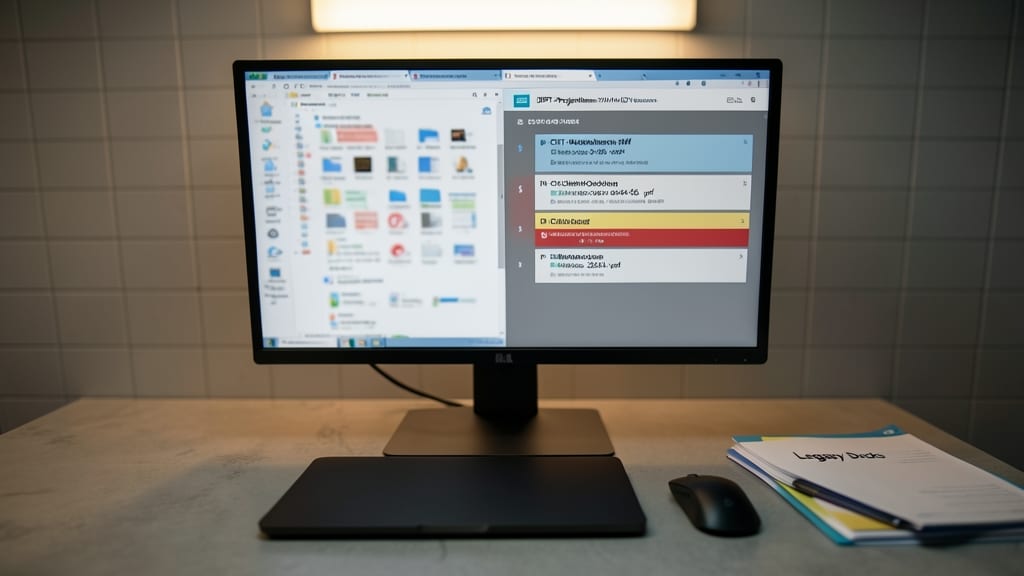
When cross-departmental projects leave you digging through folders named "MarketingStuff" or "HRDocs2024," a shared naming template becomes your secret weapon. Instead of chaos, implement a structure like DEPT-ProjectName-YYYY-MM-DD-Version (e.g., "FIN-ClientOnboarding-2024-06-v1.pdf"). This ensures every team member—from IT to marketing—knows exactly where to find files and how to name new ones.
The beauty of this system lies in its scalability. Use 3-letter department codes (e.g., "HR," "FIN," "MKT") for instant categorization, while the date format (YYYY-MM-DD) keeps files sorted chronologically in Windows Explorer and SharePoint. Versioning with suffixes like "-v2" or "-Final" eliminates confusion during revisions, and the template can be pinned in Microsoft Teams or shared via OneDrive for instant team adoption.
This approach shines in enterprise environments where onboarding new hires or collaborating with external vendors is critical. With a standardized system, everyone speaks the same language—no more guessing whether "Q2Report" refers to marketing or finance. ✨