
Software
Struggling to balance group projects, deadlines, and study time? Microsoft Teams transforms how students collaborate—without the learning curve. These 10 benefits show how the platform can simplify communication, improve grades, and reduce stress while keeping data secure.
Real-Time Classroom Collaboration Tools
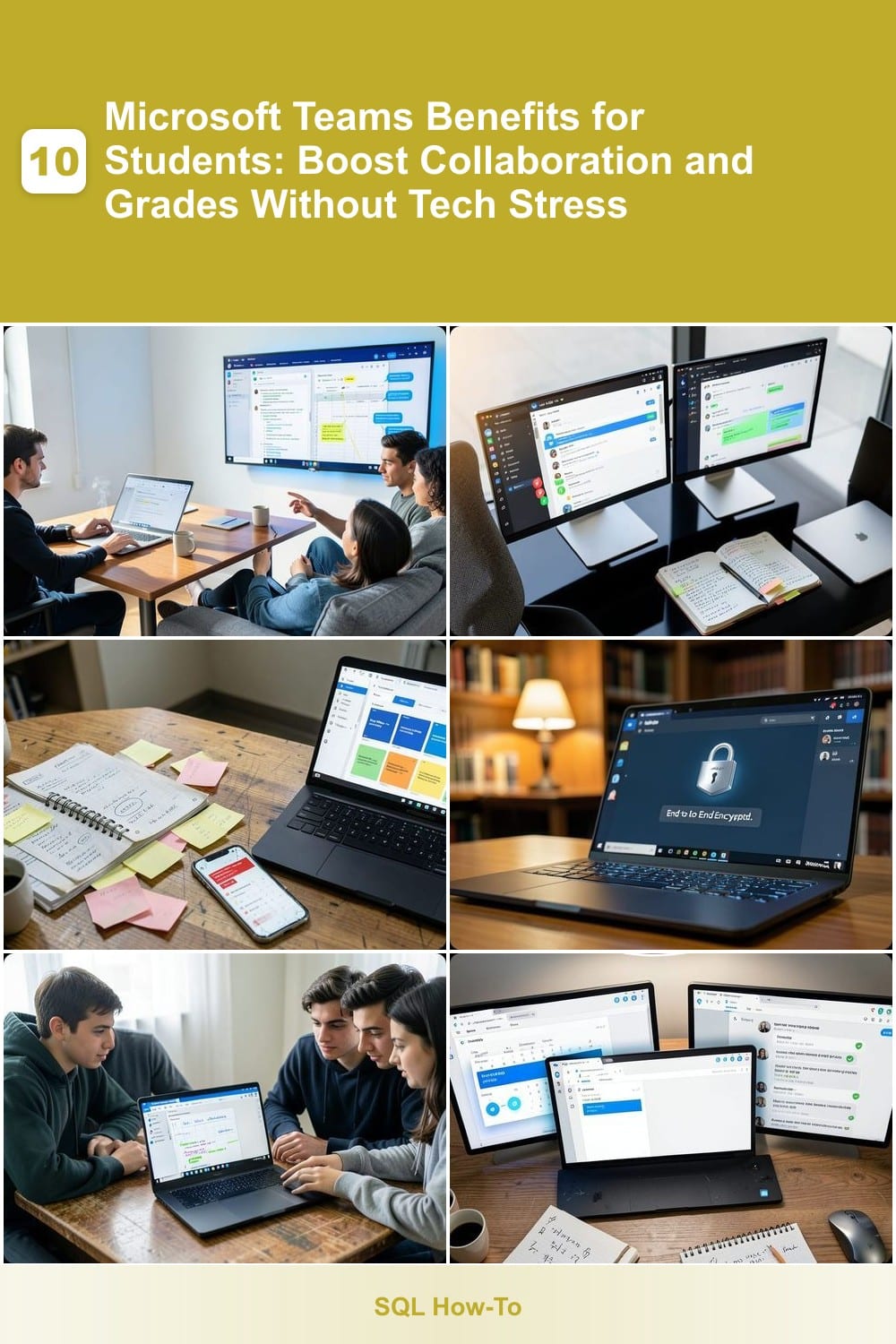
Tired of group projects derailing because someone forgot to email the latest draft? Microsoft Teams’ real-time collaboration tools turn chaotic group chats into seamless, organized workflows—where every edit, comment, and brainstorm happens in one shared space.
With live document editing in Word, Excel, and PowerPoint, multiple students can work on a presentation or research paper simultaneously, seeing each other’s changes in real time. The @mentions feature flags teammates for input, while version history lets you revert to earlier drafts if things go off the rails. For creative projects like group presentations, the shared canvas lets everyone annotate slides together—no more "I saved it as my version" confusion.
Perfect for design teams, writing groups, or coding collaborations, this tool cuts meeting time by 50% while keeping everyone on the same page—literally. ⚡
Seamless Integration with Office 365

Say goodbye to the endless email chain of drafts—Microsoft Teams’ native Office 365 integration turns group projects into a one-stop workflow. With direct access to Word, Excel, and PowerPoint files inside Teams channels, every edit, comment, and revision stays in one place, eliminating the frustration of tracking versions across emails or cloud drives.
Open a shared Word document for your research paper, then switch to Excel for data analysis—all without leaving Teams. The real-time co-authoring feature lets multiple students edit the same file simultaneously, while version history keeps a backup of every change. Need to insert a PowerPoint slide deck into your group chat? Drag and drop it directly from your desktop or OneDrive—no attachments required.
This is the ultimate solution for multidisciplinary projects where files span different formats, like business plans combining spreadsheets, reports, and presentations. Perfect for students in fields like marketing, engineering, or social sciences where collaboration spans multiple file types. ✨
Organized Assignment Tracking System
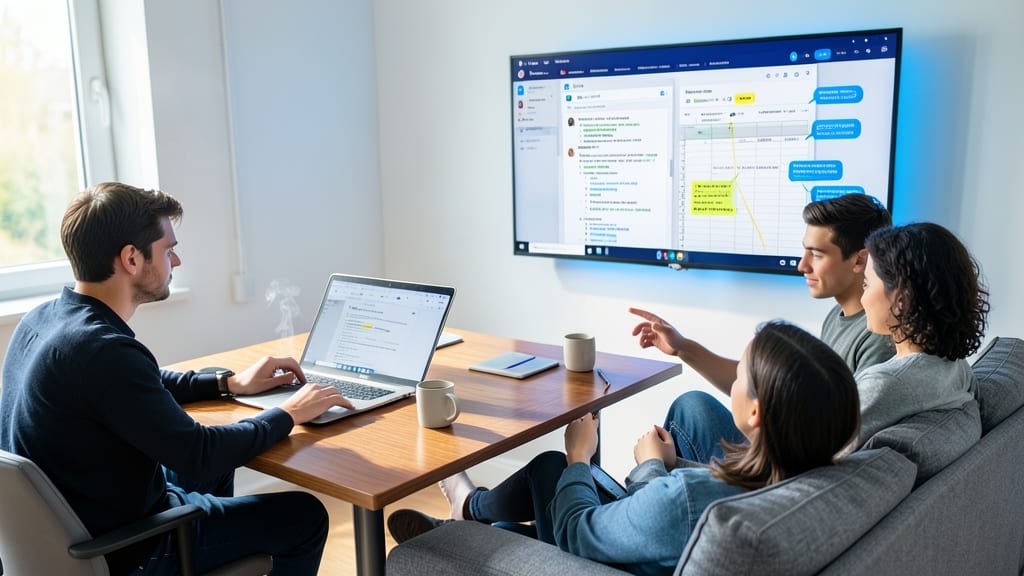
Forget the chaos of juggling sticky notes and scattered calendars—Microsoft Teams’ built-in Planner tool turns your to-do list into a battle-tested assignment tracker. The deadline reminders sync across devices, so you’ll never miss a submission again, even when balancing three midterms in one week.
Create custom task lists for each class, assign due dates with color-coded labels, and watch progress bars fill up in real time. The integration with Outlook Calendar means no more double-checking dates—just one centralized hub where assignments, reminders, and files live together. Perfect for visual learners, this system turns procrastination into productivity with minimal setup.
Whether you’re a night owl cramming for finals or a morning person with early deadlines, this feature is your personal productivity lifesaver. 💡
Secure File Sharing for Group Projects
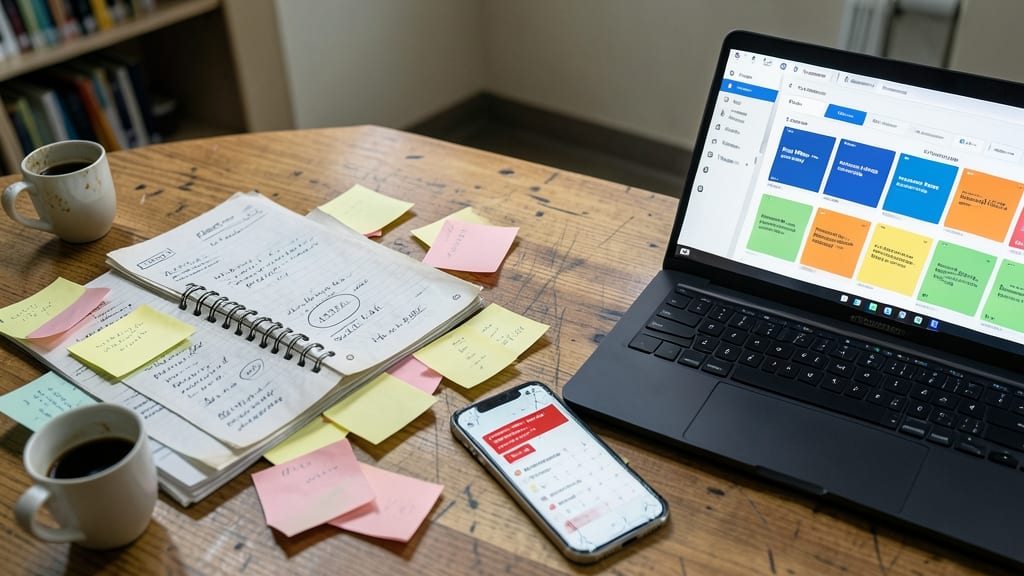
Worried about sharing sensitive research or drafts with group members? Microsoft Teams’ end-to-end encryption ensures your files—whether medical case studies or legal briefs—stay private from prying eyes, even during transit.
With AES-256 encryption as the default, every file uploaded through Teams channels gets locked down before leaving your device. You can also set expiry dates on shared links or restrict access to specific team members, giving you granular control. For students in fields like healthcare or law, this means no accidental leaks of confidential data.
Perfect for collaborative projects where privacy is non-negotiable, like joint research papers or client-facing assignments. 💻
Virtual Study Groups with Screen Sharing
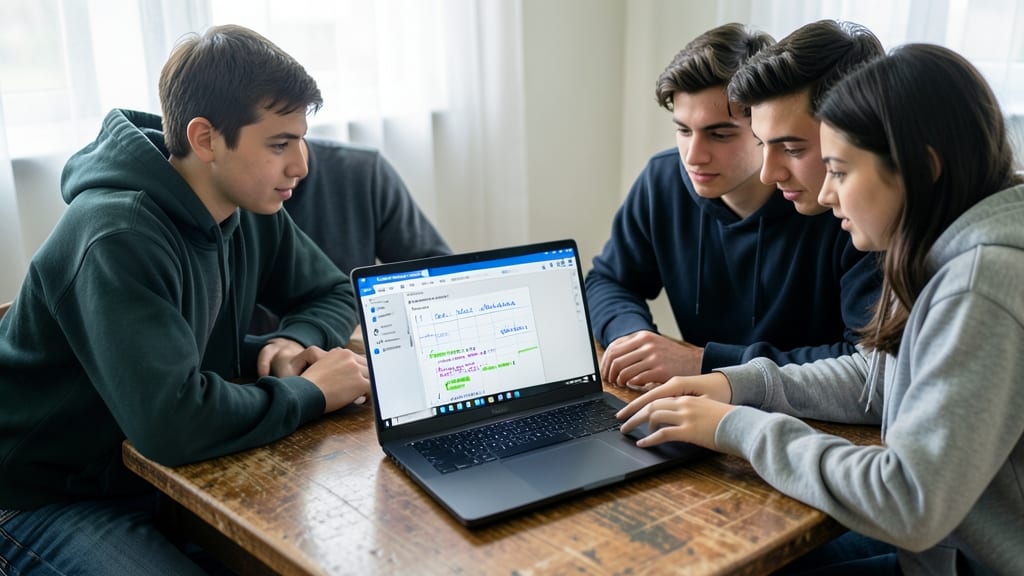
Need a way to host study groups that feels just as personal as meeting in person? Microsoft Teams’ screen-sharing feature turns your laptop into a virtual whiteboard—whether you’re debugging code, practicing Spanish verb conjugations, or tackling group projects.
With one-click screen sharing, you can display your entire desktop, a specific app (like VS Code or Excel), or even a whiteboard for live annotations. The dual-monitor support lets you keep notes open while sharing, and the low-latency video ensures smooth interactions, even over spotty Wi-Fi. Plus, the virtual background option keeps your study space distraction-free.
Perfect for CS majors pairing to debug assignments, language learners practicing conversation, or any group replacing coffee-shop meetups with tech-powered focus. ⚡
Automated Meeting Scheduling for Busy Students
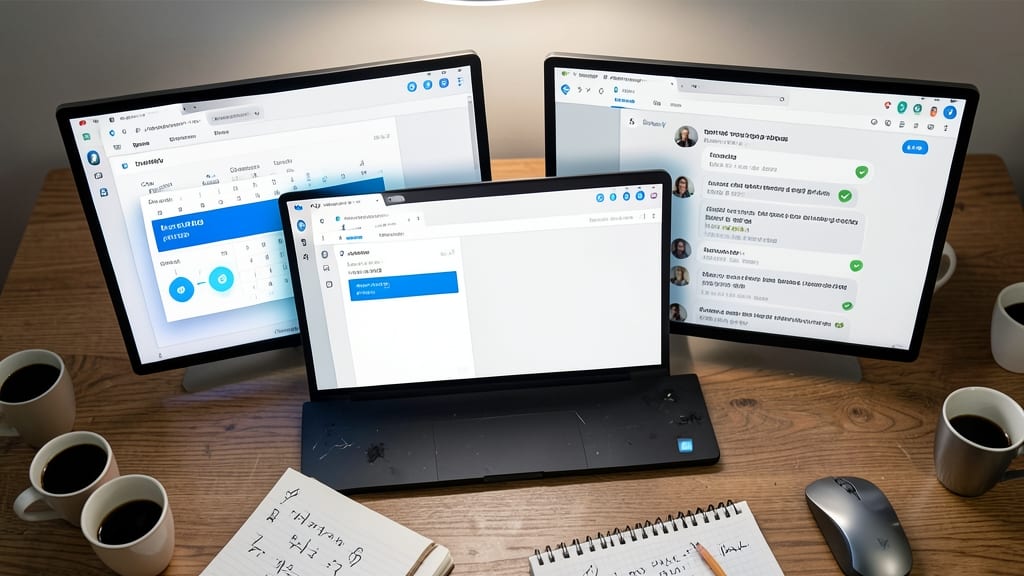
Tired of endless email chains just to schedule a quick study session? Microsoft Teams’ automated meeting scheduler syncs directly with Outlook calendars, so you can book group meetings or study sessions in seconds—no more back-and-forth messages.
With just a few clicks, you can propose meeting times, check availability, and confirm slots—all while the system handles time zone adjustments and sends reminders. The integration with Outlook means your schedule stays in sync across devices, so you never miss a study group or project deadline again.
Perfect for students juggling multiple classes, this feature is a lifesaver for group projects, language exchange sessions, or coding study groups—where coordination used to eat up precious time. ⚡
Built-In Polls and Quizzes for Engagement
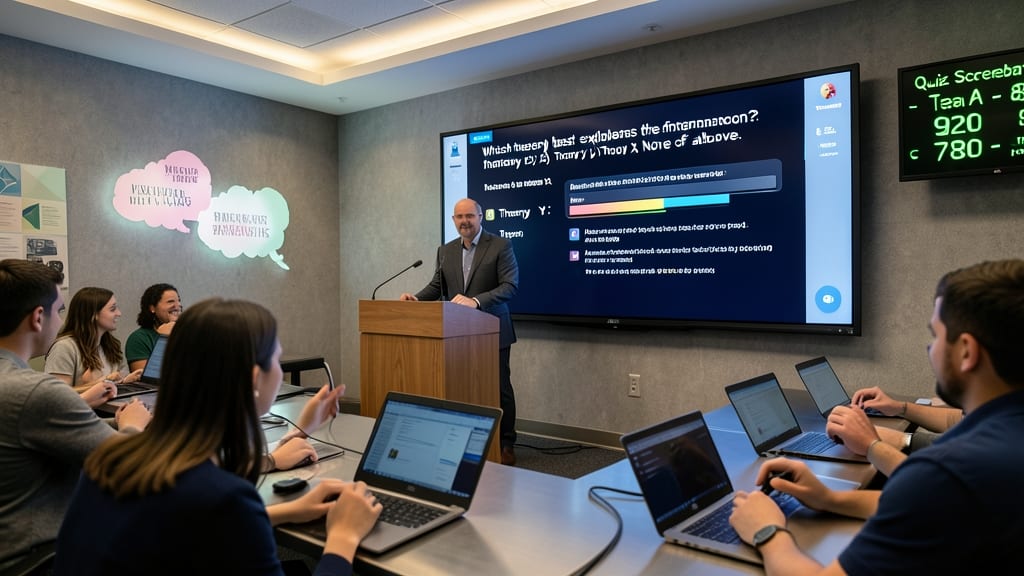
Turn passive lectures into interactive discussions with Teams' built-in polls and quizzes—a game-changer for both professors and students. These tools let instructors instantly gauge understanding with multiple-choice questions, word clouds, or quick ratings, while students can vote anonymously on topics like project themes or study priorities.
Create polls in seconds with real-time results visualization, including bar graphs and emoji reactions. The anonymous voting option encourages honest feedback, and integration with PowerPoint makes it easy to embed questions directly into presentations. For study groups, use quizzes to test each other’s knowledge without needing separate apps.
Perfect for large lectures, small study groups, or international collaborations where live interaction bridges time zones. Whether you're a professor checking comprehension or a student voting on group project ideas, this feature turns passive participation into active engagement. ✨
Mobile-Friendly Access for On-the-Go Students

Forget being glued to a desktop—Microsoft Teams’ mobile app turns your phone or tablet into a full-featured collaboration hub. Whether you’re riding the bus, waiting for your next class, or studying abroad, the iOS and Android apps let you join calls, edit documents, and reply to group chats with the same ease as on a computer.
The app supports real-time co-authoring in Word, Excel, and PowerPoint, so you can tweak a group project while grabbing lunch or review lecture notes during a commute. Push notifications keep you updated on urgent messages, and the offline mode lets you draft responses or review files when Wi-Fi is spotty—perfect for international students or those with unreliable connections.
This is a game-changer for commuters, remote learners, and global teams who need flexibility. No more waiting to get home—your work follows you everywhere. ✨
Integration with Learning Management Systems
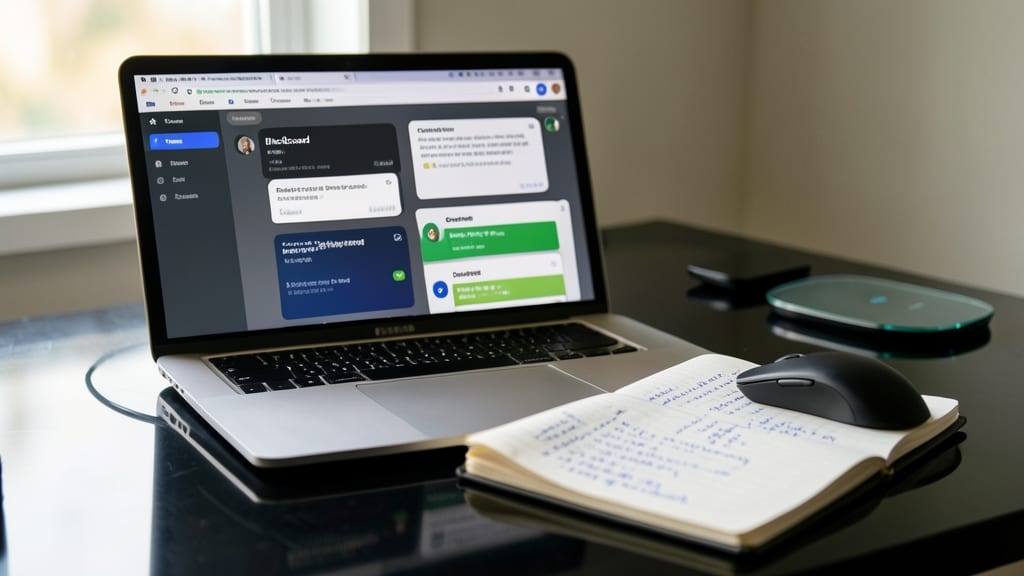
Tired of juggling tabs between Teams, Blackboard, and Canvas? Microsoft Teams bridges the gap with native integrations that let you access course materials, assignments, and announcements without ever leaving the app. This means fewer logins, fewer distractions, and a single hub for all your academic needs.
The deep LMS connections work seamlessly with Blackboard, Canvas, and Moodle, syncing grades, deadlines, and even discussion posts. Need to submit an assignment? Just click the direct link from your Teams dashboard—no copying files or searching for upload portals. The real-time updates ensure you’re always working with the latest syllabus or lecture notes, too.
This feature is a game-changer for online students or those taking hybrid courses, where switching platforms mid-task wastes precious study time. Say goodbye to the mental load of managing multiple accounts—Teams keeps everything in one place. ✨
Free Education Licensing for Students
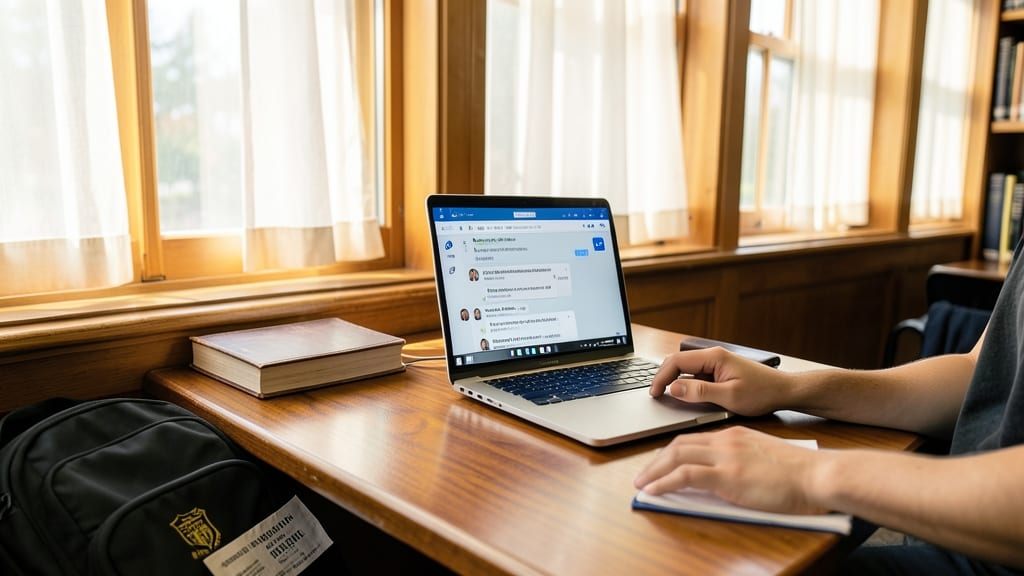
Worried about shelling out cash for collaboration tools while juggling tuition and textbooks? Microsoft Teams eliminates that stress by offering free, full-featured access to students through their educational institution—no credit card required.
Through the Microsoft Education program, students get Teams, Office 365, and Classroom at no cost, including all premium features like video calls, file storage, and integration with other tools. Your school handles the licensing, so you avoid hidden fees or subscription traps. The only requirement? A valid student email address—which you already have.
This makes Teams the perfect solution for international students, part-time workers, or anyone balancing multiple financial priorities. No budget constraints should limit your access to powerful collaboration tools. ✨